
New: the free accessible PDF editor from sitebrunch
With the sitebrunch PDF editor you design accessible PDFs, convert Word files and create forms. Free, no sign-up and entirely in your browser.
Word, InDesign, Acrobat Pro, specialist tools, service providers or the free sitebrunch PDF editor: how to create accessible PDFs, and how to find the option that fits you.
There are two ways to create accessible PDFs: you either build the structure while you design, or you make a finished PDF accessible afterwards. The first way is almost always faster and cheaper. Which tool fits depends on what you work with today and how many PDFs you publish.
Key points
A PDF is accessible when a screen reader can read it out correctly. That needs tags, a sensible reading order, alt text, enough contrast, and a title and language. The standard for this is PDF/UA (ISO 14289).
Word and LibreOffice create tagged PDFs if you work cleanly with styles. For simple text documents that is often enough.
InDesign suits complex layouts but needs experience. The PDF often has to be fixed in Acrobat Pro afterwards.
Tagging afterwards in Acrobat Pro or with specialist tools like axesPDF works with any PDF, but costs time, licence fees and expertise.
The free sitebrunch PDF editor builds the structure while you design in the browser. You should still check every PDF at the end, for example with the free PAC or the sitebrunch PDF check. Its free plan includes 3 PDF checks.
A screen reader does not read a PDF the way it looks. It follows the invisible structure in the background. Without it, you only hear a jumbled sequence of words. The benchmark is PDF/UA, the international standard ISO 14289-1. Whatever tool you use, these points have to be right in the end:
Tags: The PDF has a tag tree, and every element is marked as a heading, paragraph, list, table or image.
Headings without gaps: H1 is followed by H2, not H3. Text that is only bold and large is not a heading.
Reading order: Content is read out in a sensible order, even with several columns or text boxes.
Alt text: Every meaningful image has a short description. Purely decorative elements are marked as artifacts and skipped.
Tables and lists: Tables have real header cells. Simple tables are more robust than nested ones. Lists come from the list function, not from typed dashes.
Contrast and real text: Text stands out clearly from the background, also on photos. Text and tables are not images.
Title and language: The document has a title and a document language.
Forms: Every form field has a label that is read out.
You set most of these points while writing or designing. So the options mainly differ in when you do the work.
In the EU, public sector bodies have had to publish accessible documents for years under the Web Accessibility Directive. In Germany, federal bodies follow the BITV 2.0, and the states and municipalities follow their own laws. Since 28 June 2025, the European Accessibility Act also applies, in Germany as the BFSG. It can cover PDFs that belong to a digital service, such as contract documents or product information in an online shop.
Option | Good for | Effort | Cost |
|---|---|---|---|
Word or LibreOffice | Reports, fact sheets, simple text documents | Low if you use styles | Word by subscription or one-time purchase, LibreOffice free |
Adobe InDesign | Complex layouts, magazines, annual reports | High, needs experience | Creative Cloud subscription |
Tagging afterwards in Acrobat Pro | Existing PDFs you cannot recreate | High, very high for complex layouts | Acrobat Pro subscription |
Specialist tools like axesPDF or CommonLook | Professionals who fix many PDFs | Medium, after training | Paid licence |
Service provider | Many or complex documents without in-house expertise | Low for you | Usually per page or per document |
sitebrunch PDF editor | Flyers, invitations, forms, Word files | Low | Free |
For many documents this is the obvious route. What matters is what you do before: set headings with styles, use real lists and tables, write alt text for images. Microsoft recommends running Word's Accessibility Checker before you export. In Word for Windows, it works like this:
File > Save As > PDF > Options > turn on "Document structure tags for accessibility"
On a Mac, the option is called "Best for electronic distribution and accessibility (uses Microsoft online service)". According to Microsoft, Word sends the document to an online service for conversion, which does not store its content. If your organisation has strict data protection rules, check with IT first.
LibreOffice has the option "Universal Accessibility (PDF/UA)" on the General tab of the PDF export dialog. The check under Tools > Check Accessibility flags, among other things, missing alt text, skipped heading levels, manual numbering, merged table cells, and footnotes and endnotes. So keep tables simple from the start.
Limits: Word writes tags but does not promise a PDF/UA-compliant result. In Word you also cannot see which structure tree and reading order end up in the PDF. With text boxes, several columns or freely placed images, the order is often wrong. For more control, use an add-in like axesWord. More on our page Word to accessible PDF.
InDesign is the standard tool for professional layouts. Adobe describes the process in its help page on accessible PDFs in InDesign. You map paragraph styles to tags, set the reading order in the Articles panel and add alt text in the Object Export Options. Then you export a tagged PDF. Plan for this from the start. If you only tackle it after the layout is done, you do the work twice.
Limits: In practice, you often still have to fix the PDF in Acrobat Pro or a specialist tool afterwards, for example tables or forms. Plug-ins like MadeToTag help with the export. Without experience in accessible InDesign workflows, this quickly takes a lot of effort.
Acrobat Pro can edit any PDF and is available as an annual or monthly subscription. Automatic tagging gives you a first draft. Then you correct tags, reading order and alt text by hand and run Acrobat's accessibility check.
Limits: Automatic tags are only a rough draft. A tool can mark text as a heading, but it cannot tell whether that is right for the content. So you check every page by hand. And when the source document changes, you start over. This route is mainly worth it for PDFs whose source file you no longer have.
Tools like axesPDF or CommonLook PDF are built specifically for accessible PDFs. They show the structure more clearly than Acrobat and check specifically against PDF/UA. For Word there is also axesWord, an add-in that gives you more control over the export than Word itself.
Limits: These tools cost licence fees and are aimed at people who make PDFs accessible regularly. For a few documents a year, the training is usually too much.
If you have many or very complex documents, such as annual reports or long forms, a specialised service provider can make sense. Billing is usually per page or per document.
Limits: Every new version costs again, and the knowledge stays with the provider. Get a written commitment in the quote that the result meets PDF/UA, and ask for a test report as proof. Clarify up front what a later update costs.
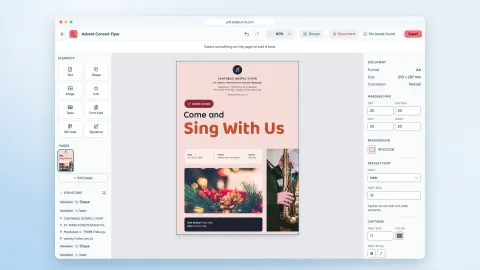
We built the sitebrunch PDF editor because the routes above are too expensive or too much work for many teams. You design in the browser, and every element gets a role: heading, paragraph, list, table, image or decorative element. On export, you get a tagged PDF with structure tree, reading order, title, language, embedded fonts and bookmarks.
You see the reading order as numbers on the page and redraw it with the mouse if needed.
While you work, the editor checks for missing alt text, skipped heading levels, tables without a header row and contrast according to WCAG, also on photos.
You start with one of 15 ready-tagged templates, a blank page, an existing PDF or a Word file.
Form fields get labels and stay fillable in the finished PDF.
The editor is free, needs no account, and your files are not uploaded. Open it at pdf.sitebrunch.com.
Limits: The editor does not replace InDesign for large print projects. If you already have a working accessible workflow there, stick with it. You cannot merge, split or comment on PDFs in the editor. If you open a PDF without tags, the editor detects headings by font size. Check those headings before you export. And as with any tool: good alt text and a sensible order depend on you.
You write reports or fact sheets in Word: Stay with Word, work with styles and check the result. Or open the DOCX file in the sitebrunch PDF editor to see the structure tree and reading order before exporting.
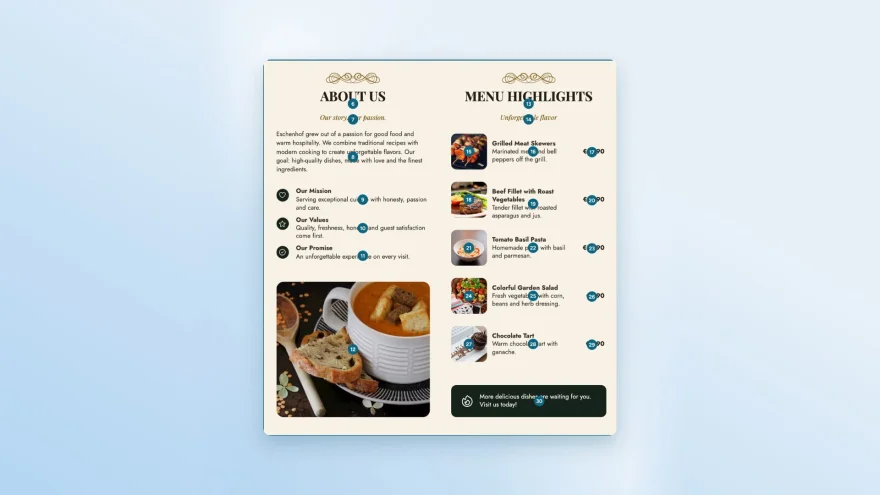
You design flyers, invitations or menus, for example in Canva today: Design directly in the sitebrunch PDF editor. PDFs from Canva do not meet PDF/UA. More on our page Canva alternative.
Your agency sets annual reports in InDesign: Stay with InDesign using an accessible workflow and plan for rework in Acrobat Pro or a specialist tool.
You have a finished PDF without a source file: Tag it in Acrobat Pro or a specialist tool. For simple layouts, you can also open it in the sitebrunch PDF editor and export it again.
You have hundreds of documents: First check which of them really need to stay online. For the rest, a service provider or an in-house team with specialist tools pays off.
Whichever route you choose: check every PDF before you publish it. The PDF Accessibility Checker (PAC) is free, has been in use since 2010 and is funded by the German Federal Ministry of Labour and Social Affairs. It runs on Windows, checks the machine-testable requirements of PDF/UA and shows you in a screen reader preview how the structure comes across. The current version, PAC 2026, adds AI-supported analysis.
With the sitebrunch PDF check you check PDFs in the browser against PDF/UA and WCAG, on any operating system. You check single PDFs or have whole websites scanned for embedded PDFs. You review the reading order in a separate view. The free plan includes 3 PDF checks. From the Starter plan, you can publish the test report as a shareable URL. You fix the errors themselves in the source document or in the editor and export again.
Automatic checks do not find everything, though. Only a person can judge whether an alt text makes sense or the reading order is logical. So listen to important documents once with a screen reader, for example the free NVDA.
Build the source document with styles for headings, lists and tables, or design directly in the sitebrunch PDF editor.
Add alt text and set the title and language in the document properties.
Run your tool's built-in check.
Export with tags or with the PDF/UA option.
Check the PDF with PAC or the sitebrunch PDF check and review the reading order by hand.
Fix errors in the source, export again and check again.
If your team wants to learn the process: our e-learning "Creating accessible documents" covers the basics, Word and testing. It is included in the Agency plan and available as a single licence.
No. Word writes tags from your styles into the PDF. Whether the result is accessible depends on how cleanly the Word document is built. Text that is only bold and large does not become a heading. So always check the PDF, for example with PAC.
Not necessarily. PAC and other automatic checks find technical errors such as missing tags, missing alt text or a missing title. Whether an alt text fits or the order is logical only shows in a manual review. PAC's screen reader preview helps with that.
Public sector bodies in the EU generally have to make PDFs and other documents they publish online accessible. There are exceptions, for example for older archive content. For companies, it depends on whether the PDF belongs to a service covered by the European Accessibility Act. If in doubt, make important documents accessible or also offer the content as an accessible web page.
That depends on the route. LibreOffice, PAC, NVDA and the sitebrunch PDF editor are free. InDesign and Acrobat Pro are only available by subscription, Word by Microsoft 365 subscription or as a one-time purchase. Specialist tools and service providers charge licence fees or bill per page. The biggest cost is usually the time spent tagging afterwards.
Yes, but not fully in Canva itself. Canva can write some information such as alt text and headings into the PDF, but it does not meet PDF/UA. Export your design as a PDF and open it in the sitebrunch PDF editor or in Acrobat Pro. There you add tags, reading order and alt text. It is easier to design the document in a tool that builds the structure as you go.
As of September 2026. The information on Word, LibreOffice, InDesign, Acrobat, PAC and the specialist tools is based on the linked vendor pages.
Start today with sitebrunch and make sure your digital content is accessible.
Start for free (öffnet neuen Tab)With the sitebrunch PDF editor you design accessible PDFs, convert Word files and create forms. Free, no sign-up and entirely in your browser.
Free tools, guided self-tests or expert audits: what it costs to test your website for accessibility, what drives the price and when a self-test is enough.
AI coding assistants like Claude Code can fix accessibility issues directly in code once they know where the issues are. How to connect Claude Code to your sitebrunch audits and what to keep in mind.