Skip to content

Convert Word to an accessible PDF

Open your Word file in the browser, check headings, images and tables, and export an accessible PDF. Free, no sign-up and no upload.

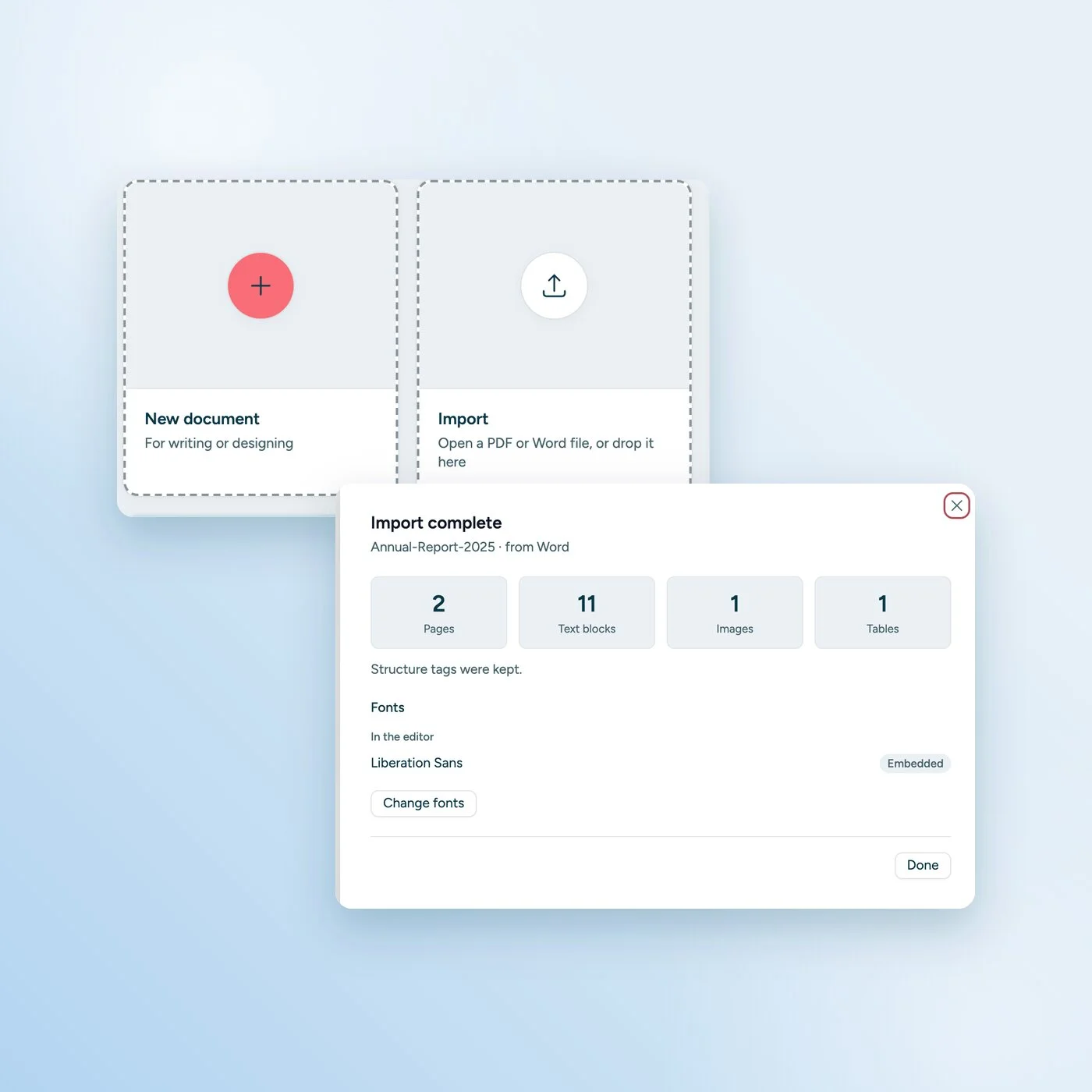
What the editor takes from Word

After the import

The document opens in writing mode. Text flows across the pages like in Word, and you can keep writing right away.

How to prepare your Word document

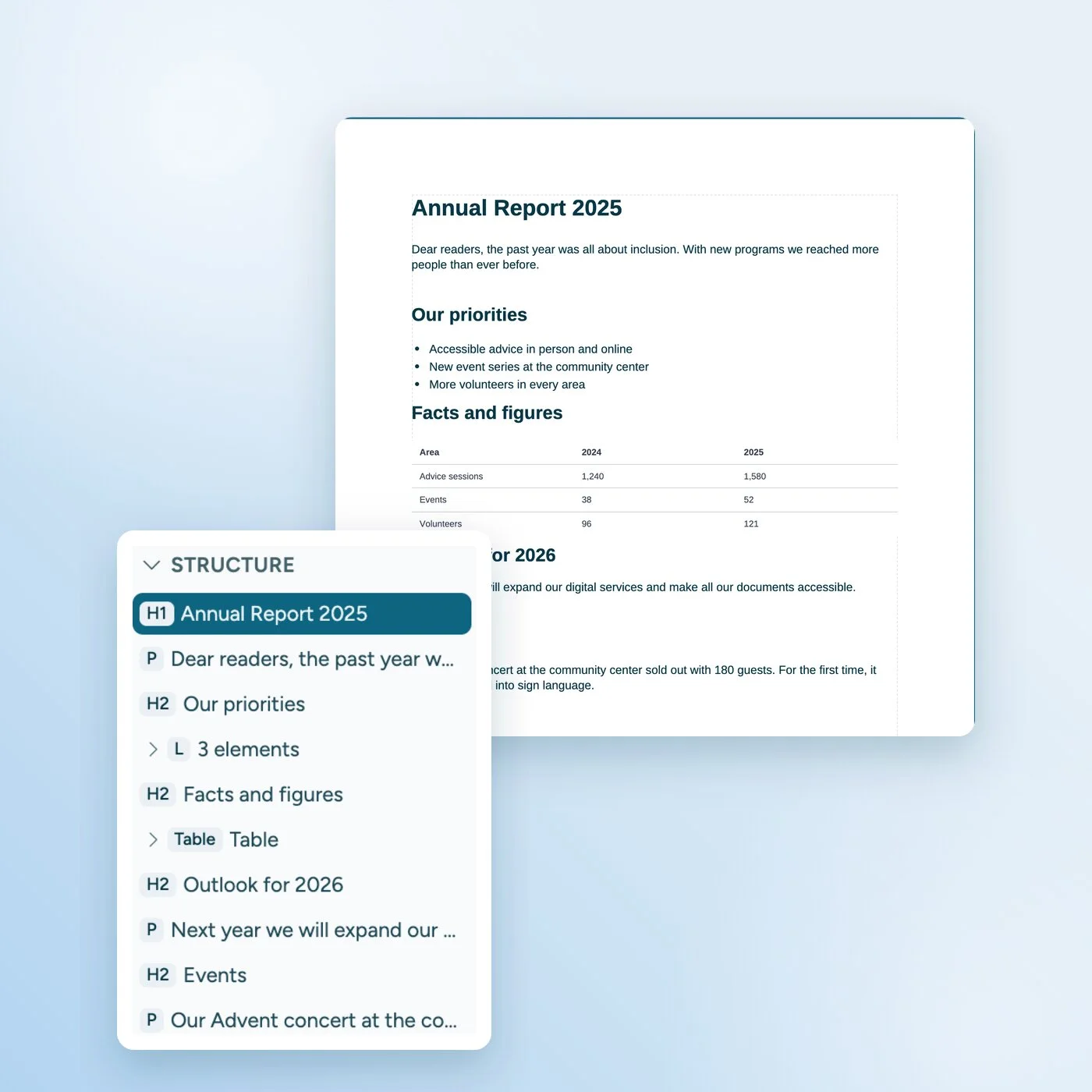
The PDF editor takes the structure from your Word document. The cleaner it is, the less you need to fix later:

  1. Use styles for headings. Set headings with “Heading 1”, “Heading 2” and so on, not with bold, large text.

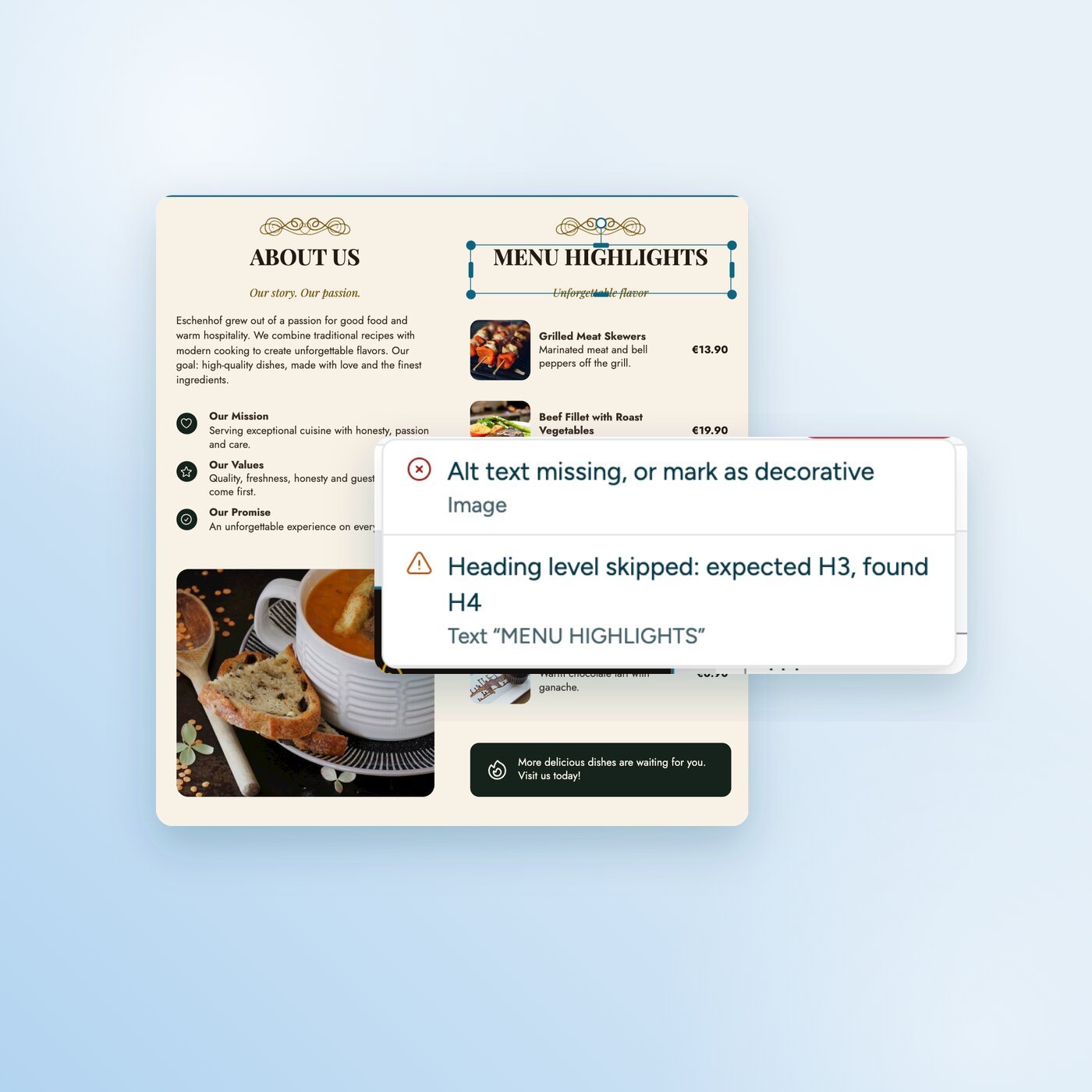
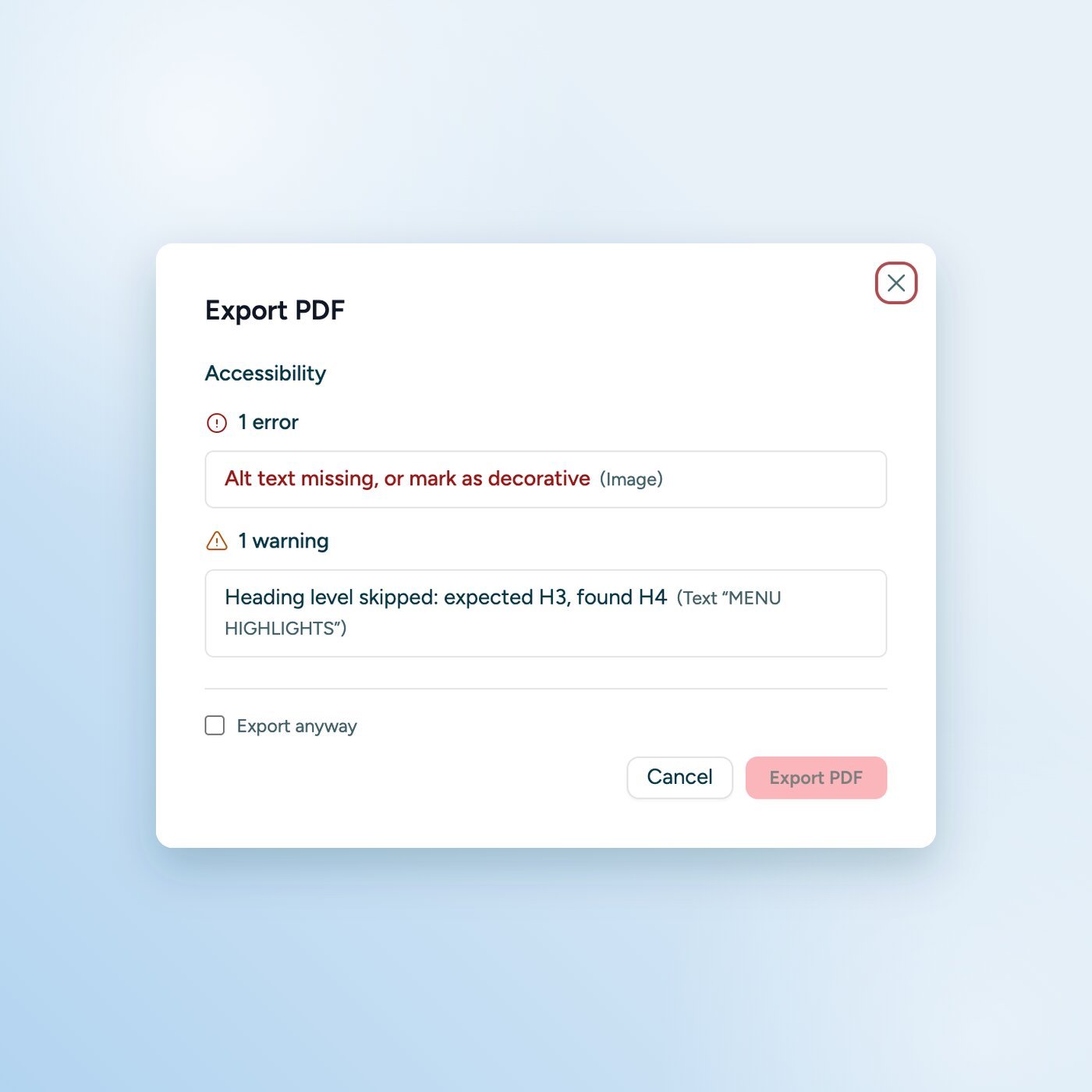
  2. Don’t skip heading levels. A Heading 1 is followed by a Heading 2, not directly by a Heading 3.

  3. Use real lists. Use Word’s list feature instead of typed dashes.

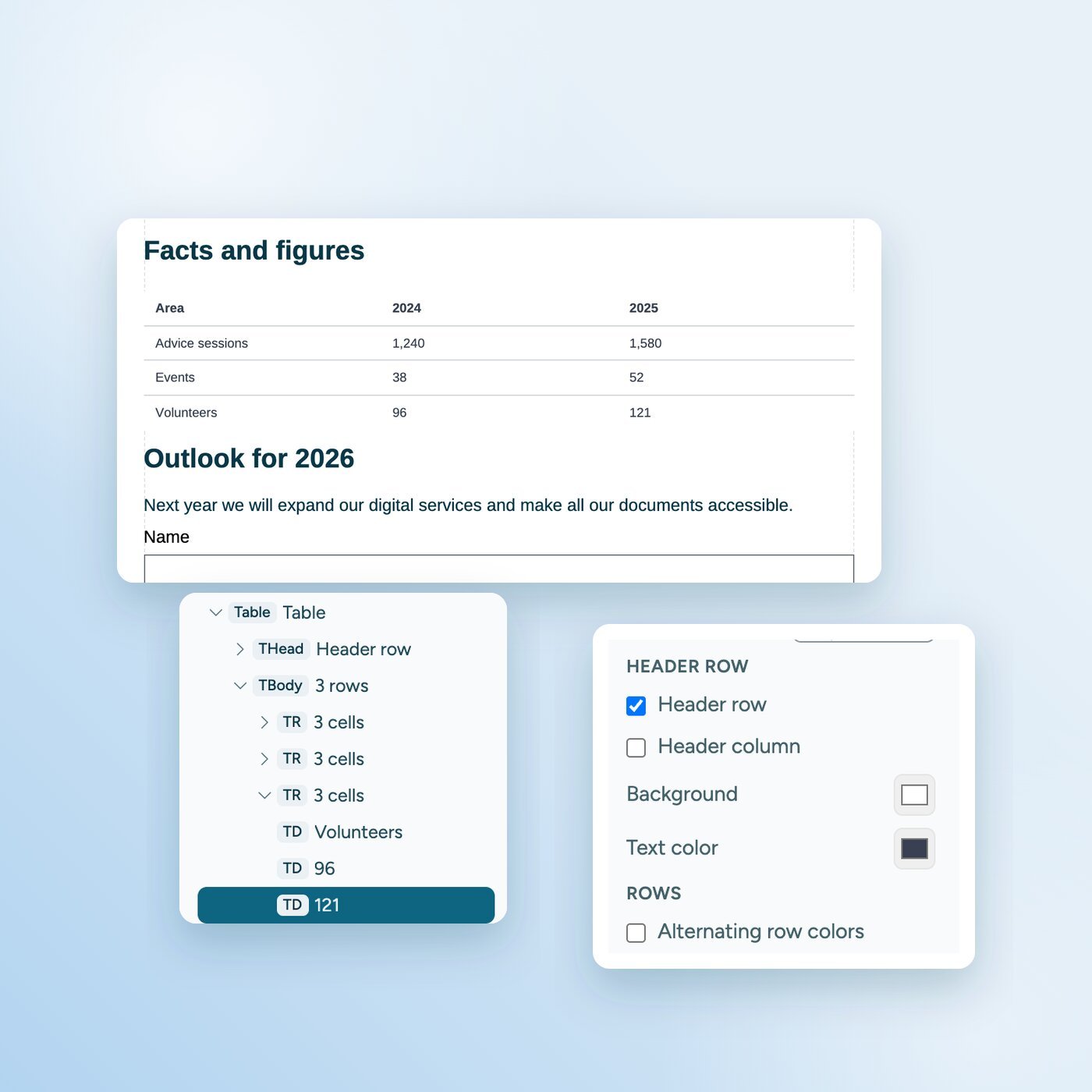
  4. Give tables a header row. Mark the first row as a header row and don’t use tables for layout.

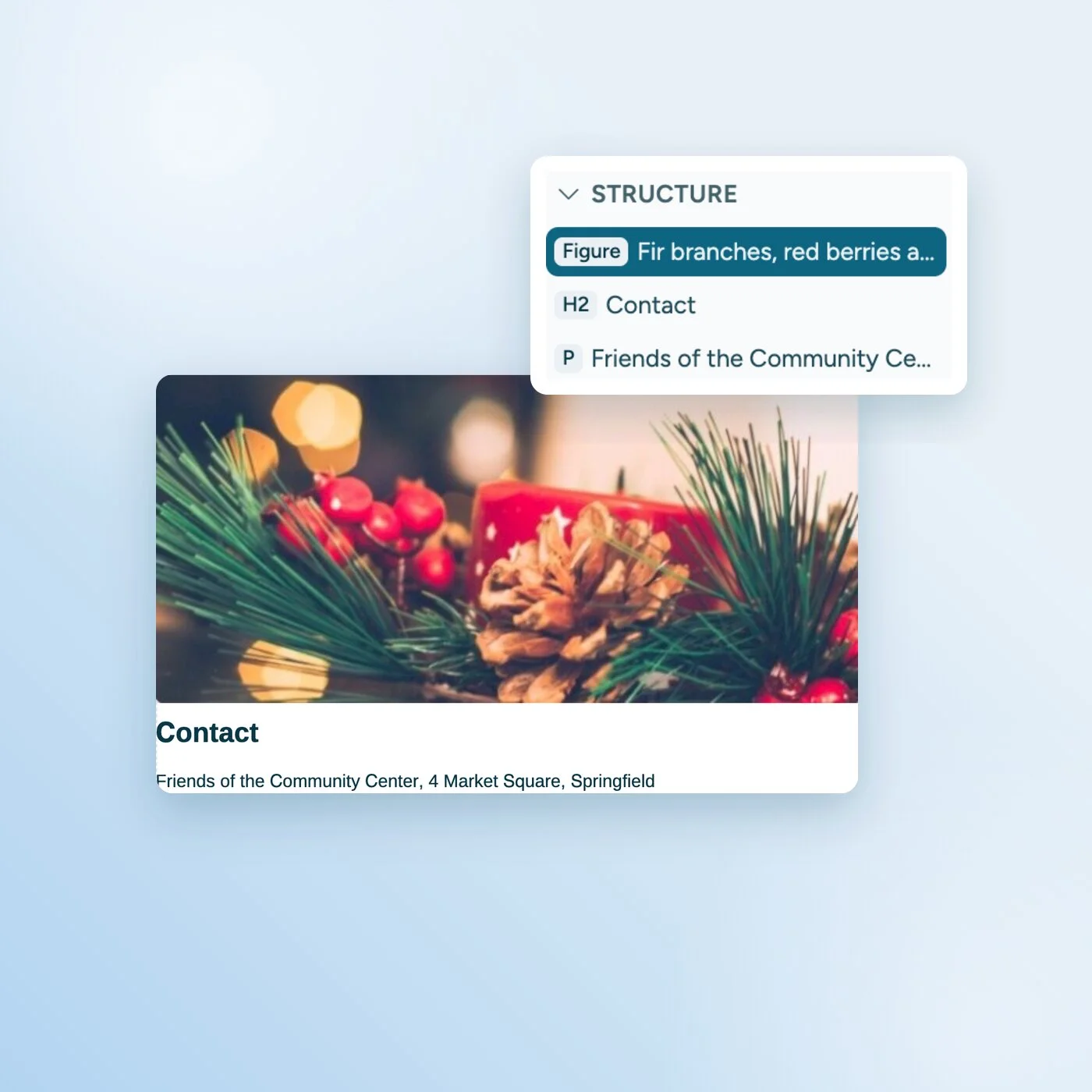
  5. Write alt text. Describe every image that carries meaning. Mark purely ornamental images as decorative in the editor.

Word export vs. sitebrunch PDF editor

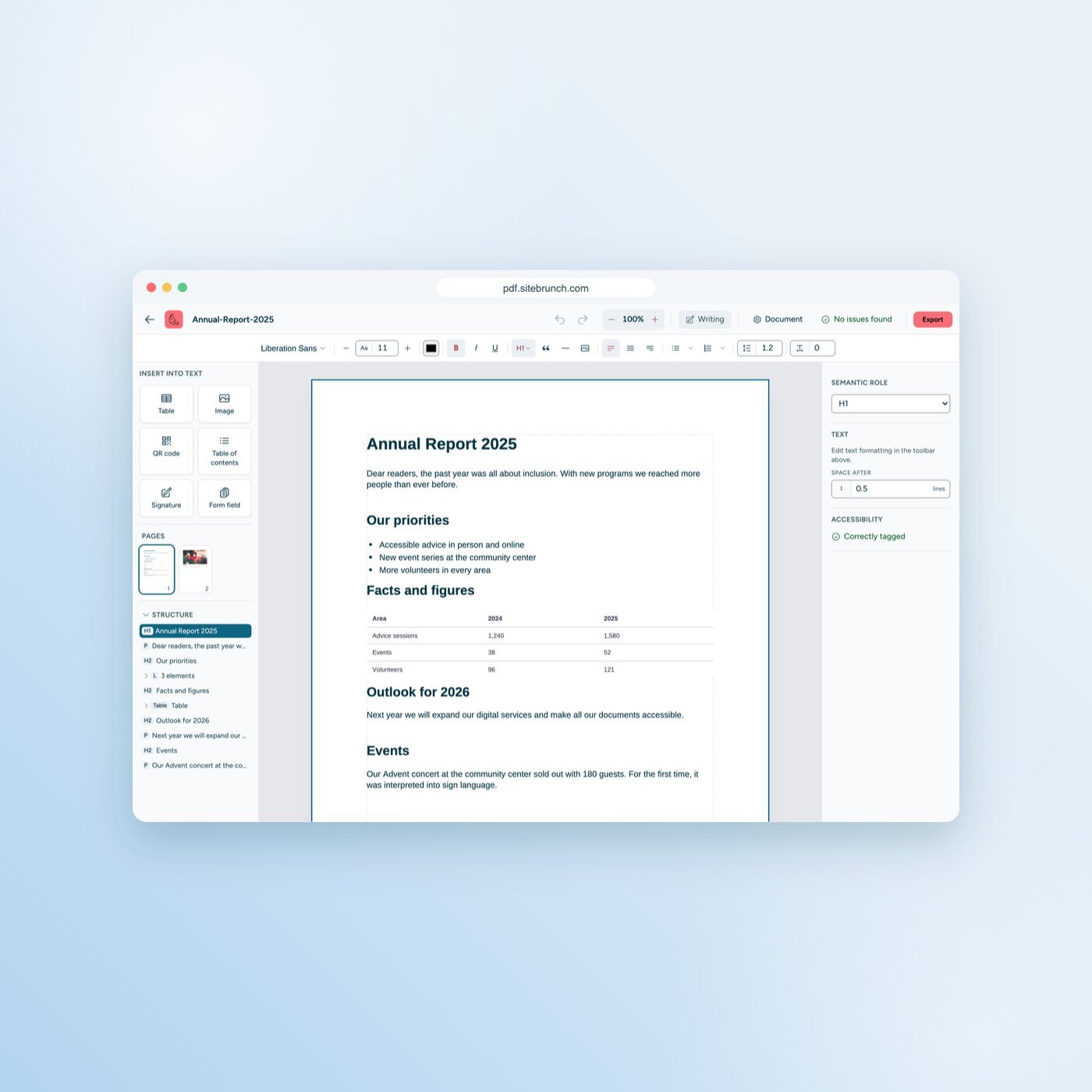
Word does write tags when you save as PDF, but you can’t see in Word what ends up in the PDF. In the sitebrunch PDF editor you see the structure tree and the reading order, and you can fix both before you export.

Feature

Save directly from Word

With the sitebrunch PDF editor

Tags from styles

Yes

Yes

View the PDF’s structure tree

No

Yes, with a role for every element

View and draw the reading order

No

Yes

Check contrast of text on photos

No

Yes

Accessible PDF on a Mac

Only through an online service from Microsoft

Entirely in your browser, no upload

Adjust the layout afterwards

Only in the Word document

Right in the editor

As of September 2026. On a Mac, Word sends the document to an online service from Microsoft to create an accessible PDF.

Free, local and private

Local

No upload

Conversion and editing run entirely in your browser. Your document never reaches a server.

Independent

No Word needed

All you need is an up-to-date browser. You don’t have to install Word or any other software.

Free

No sign-up

No account, no subscription, no watermark. Open the editor and get started.

How to convert Word into an accessible PDF

Ready to convert your Word document?

Open the PDF editor and get started. Free, no sign-up and no upload.

Get started (öffnet neuen Tab)

Questions and answers