
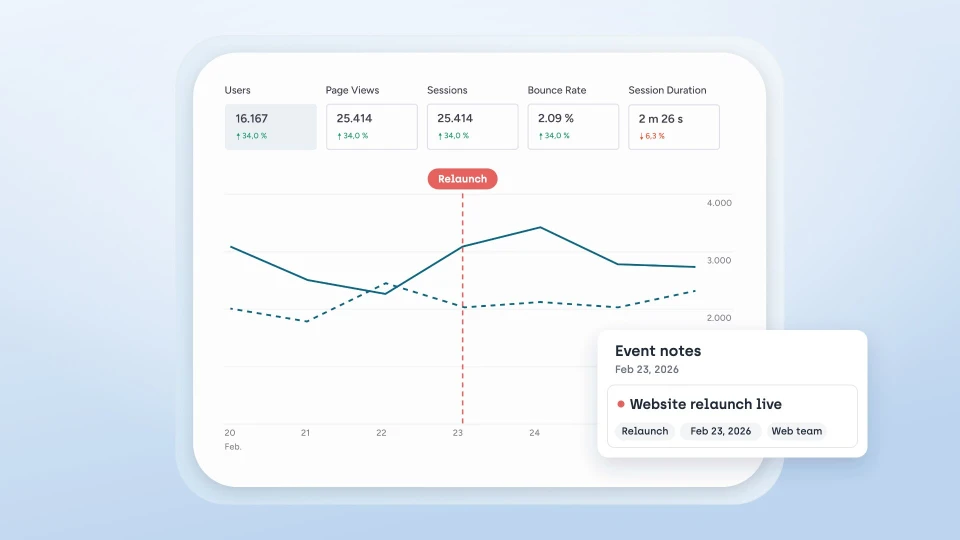
Planning a website relaunch? What to watch before, during and after go-live
Secure metrics and conversions, collect feedback directly on the website, test before go-live and compare afterwards: how to plan a relaunch that is measurably better.
No single tool can confirm accessibility. How to combine an automated check, the keyboard, zoom, a screen reader, a contrast checker and a manual audit, and what to watch out for when testing.
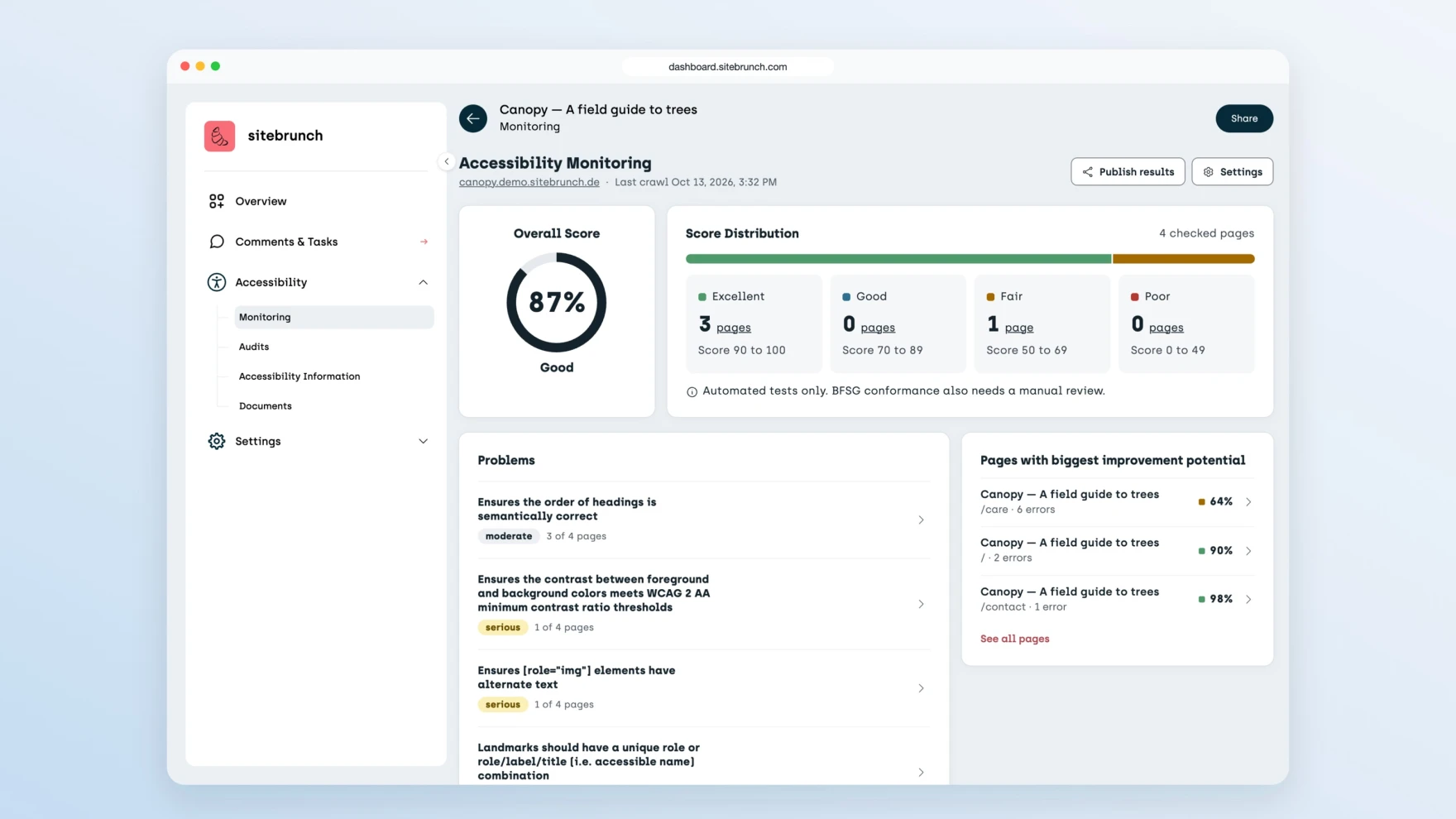
We test with several tools that complement each other. First comes an automated check that finds the machine-testable issues in seconds. Then come the keyboard, browser zoom and a screen reader. Finally, a guided manual audit covers every testing step of EN 301 549 and WCAG 2.2. None of these tools is enough on its own. What makes the difference is knowing how to read their results.
Key takeaways
An automated check finds typical issues, but it cannot confirm that a website is accessible.
Our automated monitoring tests 19 WCAG success criteria. The complete audit has 97 testing steps.
The keyboard, 200 % zoom and a free screen reader reveal what no scanner sees.
PDFs need their own check against PDF/UA and WCAG.
Tools alone will not get you far, you need to know how to use them. Our e-learning "Implement accessibility strategically" is included in the free plan.
The W3C Web Accessibility Initiative says so explicitly: evaluation tools cannot check every aspect automatically, human judgement is required, and sometimes they produce false or misleading results. According to the WAI, tools cannot determine accessibility, they can only assist with it (W3C WAI, Selecting Web Accessibility Evaluation Tools).
An example from our own tool: the automated check detects whether an image has alternative text. Whether that text actually describes the image well is assessed by an AI model for a limited number of images per page only. The final judgement stays with a human. That is why, for us, a passed automated check never means the criterion is met (What the automated check tests).
Tool | What for | Concrete example | Limit |
|---|---|---|---|
Automated check | Machine-testable WCAG rules | Form field without a linked label: the screen reader cannot announce what to enter | Does not judge the quality of content |
Keyboard (Tab, Shift+Tab, Enter) | Operation without a mouse | A menu only opens on hover and cannot be reached with Tab | Says nothing about screen reader output |
Browser zoom to 200 % | Readability when enlarged | Text runs out of the window and forces horizontal scrolling | Only one aspect of the layout |
Screen reader (NVDA, VoiceOver) | How assistive technology reads the page | An icon button is only announced as "button", without a name | Takes practice, otherwise the results are not reliable |
Contrast checker | Colour contrast of text | Light grey text on white does not reach 4.5:1 | Text on images has to be checked deliberately |
PDF check | Documents against PDF/UA and WCAG | Graphic without alternative text | Reading order has to be checked by a human |
The order in which we use them follows in the next section.
Scan automatically. You start our free accessibility checker with a URL. It tests the page with more than 80 automated WCAG checks based on Axe-core, an accessibility testing engine. You get a score from 0 to 100 percent. It finds, for example, missing alternative texts, weak contrast, a missing language attribute and skipped heading levels.
Go through it with the keyboard. Put the mouse away and tab through the page. It must always be visible which element currently has focus. The W3C explains what to look for in its Easy Checks on keyboard focus.
Zoom. Make the browser window narrow and zoom to 200 % with Ctrl or Cmd and "+". According to the W3C Easy Checks on zoom, you should get there after pressing about five times. The text must then still wrap within the window.
Turn on a screen reader. On Windows, use NVDA, the free screen reader from NV Access. On the Mac, VoiceOver is built in and, according to Apple Support, can be turned on and off with Command-F5.
Measure contrast. WCAG success criterion 1.4.3 requires a contrast ratio of at least 4.5:1 for normal text and 3:1 for large text (W3C, Understanding SC 1.4.3).
Audit systematically. A test protocol replaces gut feeling. In our manual audit against EN 301 549 and WCAG 2.2, our browser extension opens every testing step directly on your website, with element info, a contrast checker and automated tests. The kick-off audit covers the most important testing steps, and within about a day you know where you stand. The complete audit goes through all 97 testing steps.
Don't forget PDFs. With our PDF check you upload individual documents or have your website searched for embedded PDFs. They are checked against PDF/UA and WCAG. You check the reading order manually.
Taking the score for the result. A high value in the automated check only means that the machine-testable rules are met. Our checker is explicitly not a legal assessment and not proof of conformance.
Testing only the home page. Our free checker always tests the one page whose URL you enter. Forms, the shopping cart and the login often look very different. So for keyboard and screen reader tests, choose the pages where users want to get something done.
Using a screen reader without practice. Anyone starting NVDA for the first time easily mistakes their own operating errors for errors on the website. Learn the basic commands first, then test.
Testing once and ticking it off. Websites change with every deployment. That is why our WCAG monitoring scans continuously. From a completed audit you start a re-audit that carries over all previous findings, and you tick off what has been fixed.
If you read the table above again, you will see that every limit in it is a question of knowledge. Is the alternative text good? Is this screen reader announcement correct? Does this finding belong to design or to development? That is exactly what our training content for digital accessibility is for, including the trainings by Gehirngerecht Digital.
The e-learnings are split by role:
Design: principles of accessibility, design systems, documenting and testing designs, WCAG in design.
Development: how assistive technologies understand your website, HTML and ARIA, dynamic status updates.
Editorial: accessible texts, images, videos and animations.
Documents: creating accessible documents with Word and checking them yourself.
Depending on the e-learning, it takes between 4 and 12 hours. You can work through it from start to finish or use it as a reference. It contains resources and aids for implementation and testing. On completion you receive a certificate of participation that you can share on LinkedIn.
To get started, yes. To make a statement about conformance, no. An automated check shows you obvious problems. But many requirements cannot be tested automatically, and for those you need manual testing.
Use the one that runs on your system: NVDA on Windows, VoiceOver on the Mac. Both are free. More important than the choice is that you master the basic commands.
Yes, but not on the Free plan. According to our pricing, audits are only included from the Solo plan at €49 per month. Every testing step has a guide with images, many also have a video and examples. Automated problem and solution suggestions for all testing steps are available from the Agency plan.
"Implement accessibility strategically" is included in every plan, including the Free plan. All trainings by Gehirngerecht Digital are included in the Agency plan at €149 per month and can be shared there through the workspace with any number of colleagues. Individually, they are available as a single licence that has no time limit and is tied to one person.
Before you try out the first tools, you should know what you are actually testing. Start with our e-learning "Implement accessibility strategically". It shows you which mistakes to avoid and how accessibility stays in place over time. More than 100 participants have already completed it. You sign up for free and find the e-learning in the Free plan. You can find all content and plans on our page about training content for digital accessibility.
Start today with sitebrunch and make sure your digital content is accessible.
Start for free (opens in a new tab)Secure metrics and conversions, collect feedback directly on the website, test before go-live and compare afterwards: how to plan a relaunch that is measurably better.
Word, InDesign, Acrobat Pro, specialist tools, service providers or the free sitebrunch PDF editor: how to create accessible PDFs, and how to find the option that fits you.
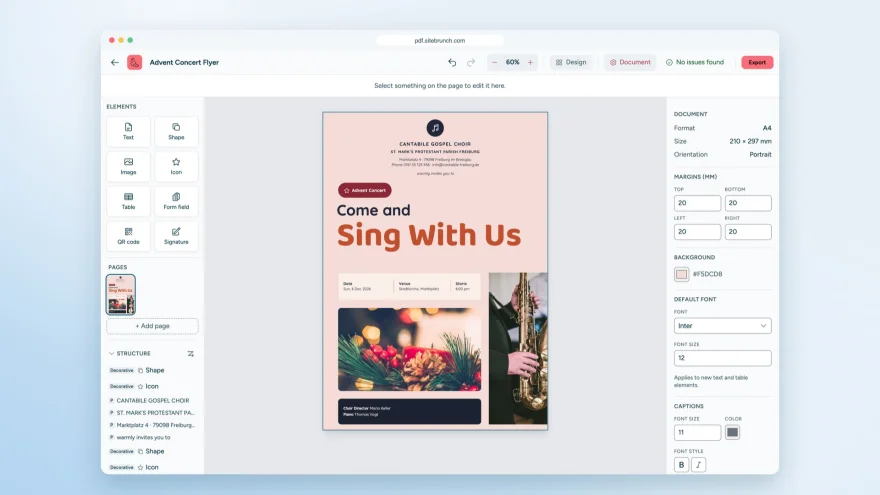
With the sitebrunch PDF editor you design accessible PDFs, convert Word files and create forms. Free, no sign-up and entirely in your browser.