
A funnel shows you step by step where visitors drop out on the way to the goal. This article shows you how to create and read a checkout funnel.
Last updated: October 3, 2026
Requirements
You have created the steps as events, for example “Add to cart”, “Go to checkout” and “Purchase”.
Create a funnel
In Conversions, under “Funnels” on the left, click “New funnel”. Give it a name, for example “Checkout”.
Click “Add step” and choose the first event. Repeat this for every further step. Use the handle to the left of a step to change the order, and the trash can on the right to remove it.
Counting happens within one visit and in the order of your steps. Other pages and clicks in between are allowed.
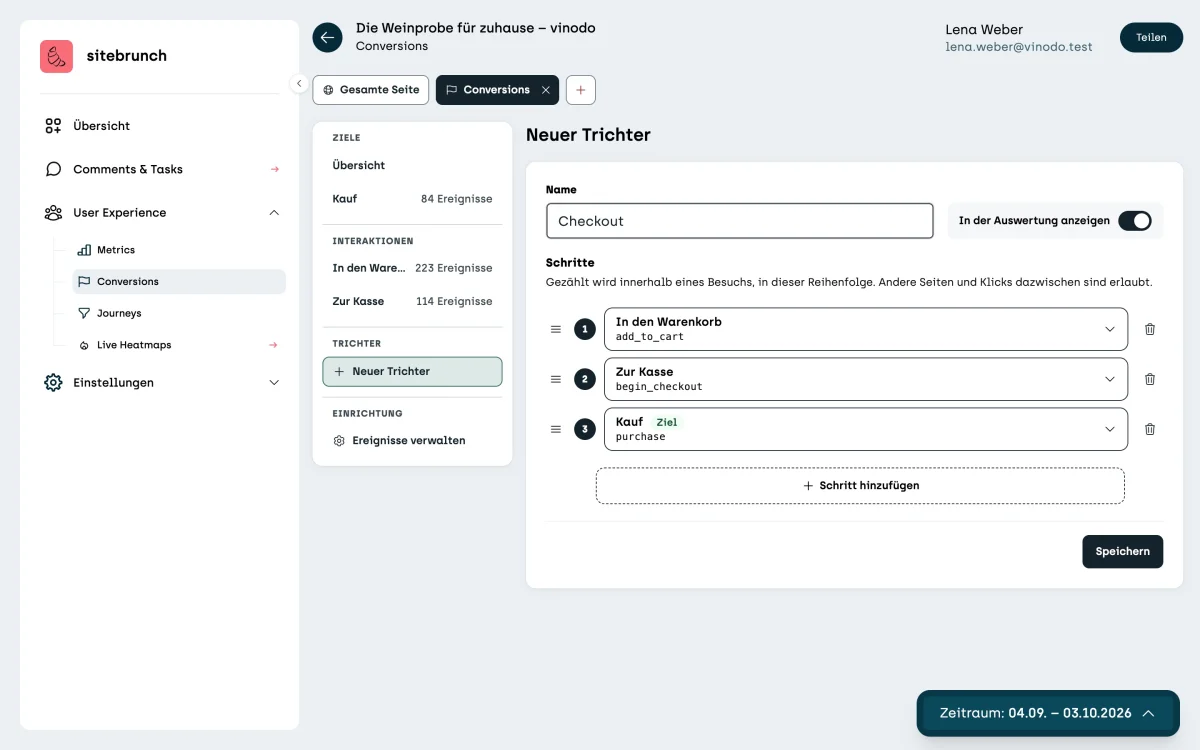
Leave “Show in the analysis” turned on so the funnel appears in the list on the left. Then click “Save”.
Read the funnel
At the top is the “Result in the period”: how many visits made it through all steps. On vinodo.de it is 49%, meaning 84 of the 170 visits that added something to the cart.
Below that you see each step as a bar. The arrows between the bars show how many make it to the next step. Below the bars you see how many drop off at this step and where they go instead.
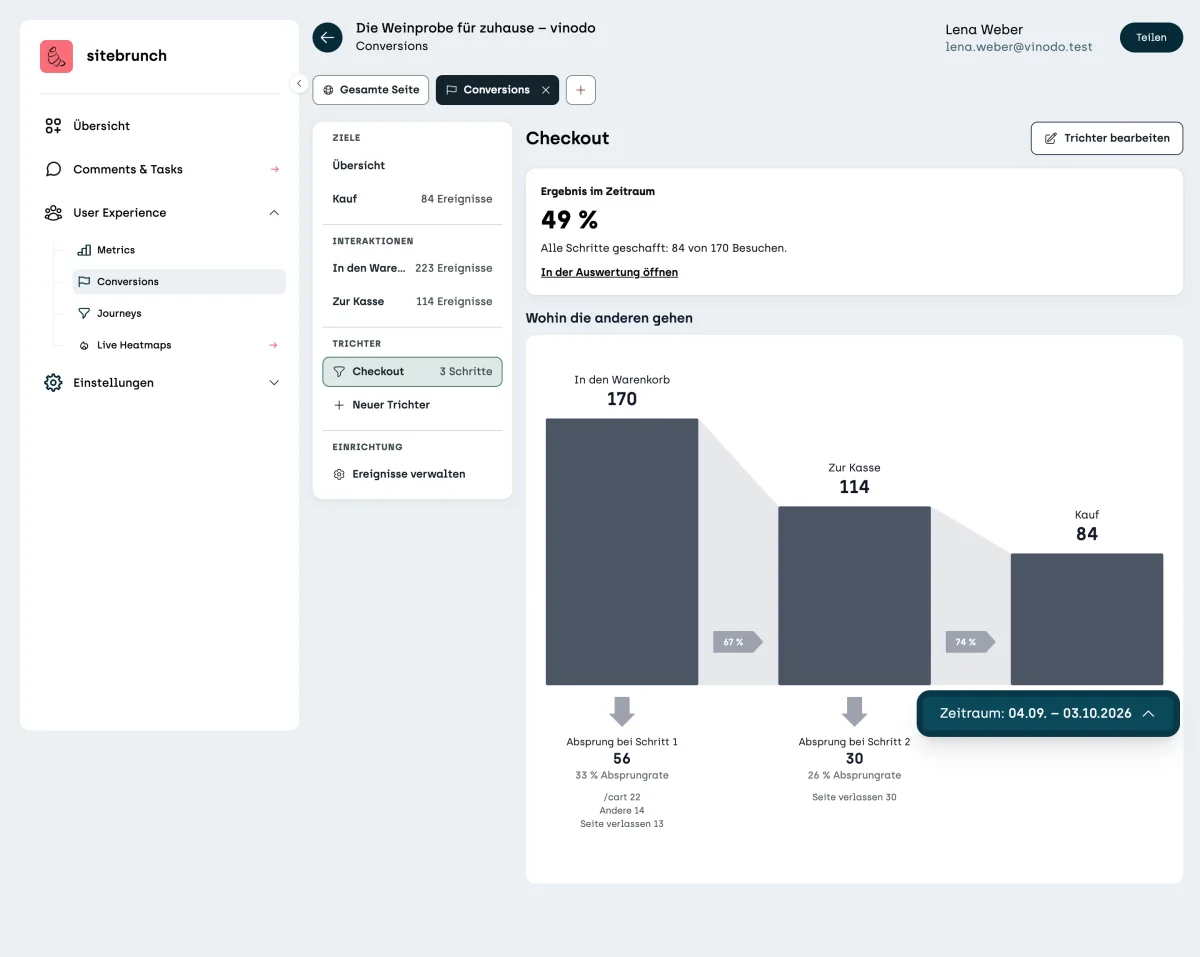
Use “Edit funnel” at the top right to change the name and steps at any time.