
What the overview is made of and how you can use it to check and improve your pages for accessibility automatically.
Last updated: June 3, 2026
Requirements
A sitebrunch account
An active project
Open the overview
First open your project by clicking the project card in the workspace. You find the monitoring overview in the navigation under “Accessibility”, “Monitoring”.
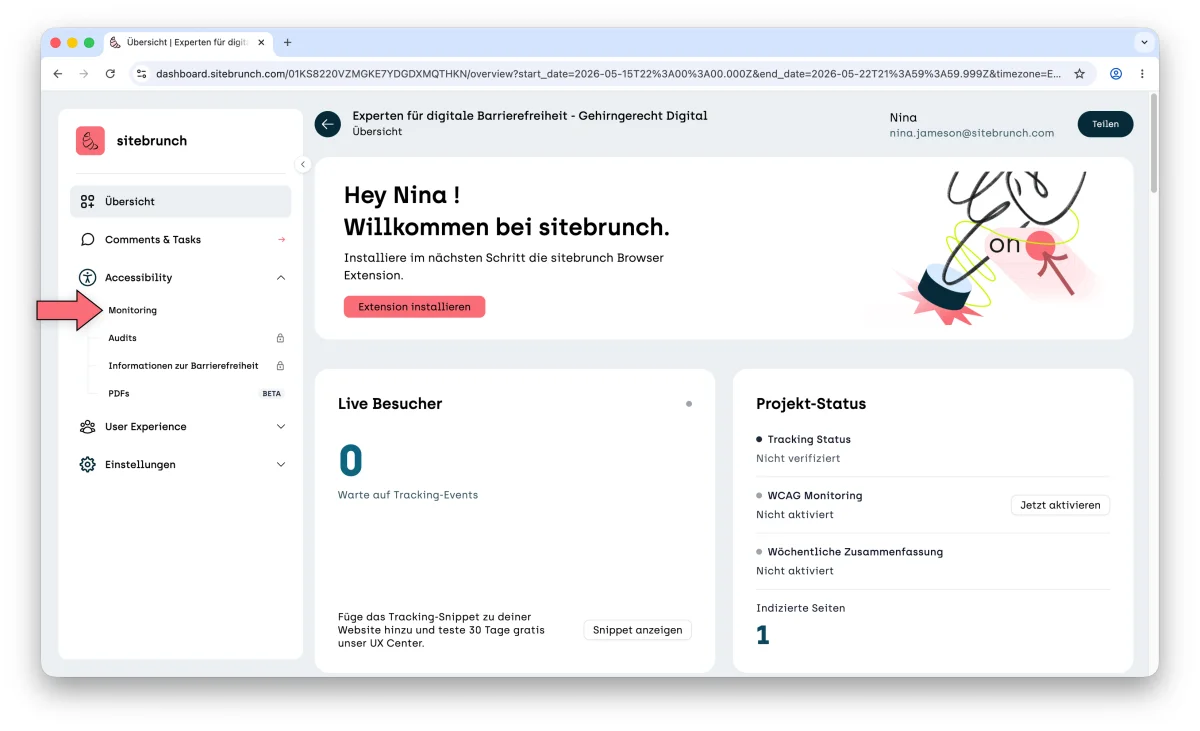
The overview
The overview currently has four sections:
overall score,
score distribution,
main URLs and
quick wins.
They help you keep an eye on accessibility and improve it.
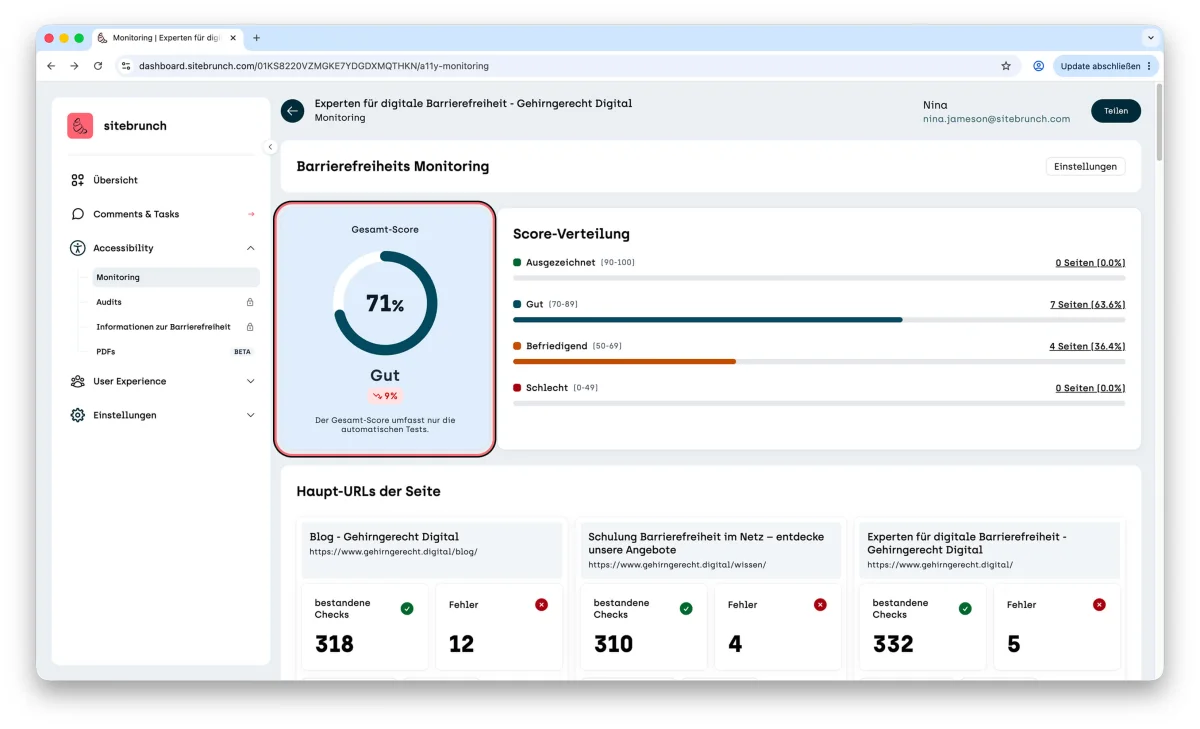
The overall score
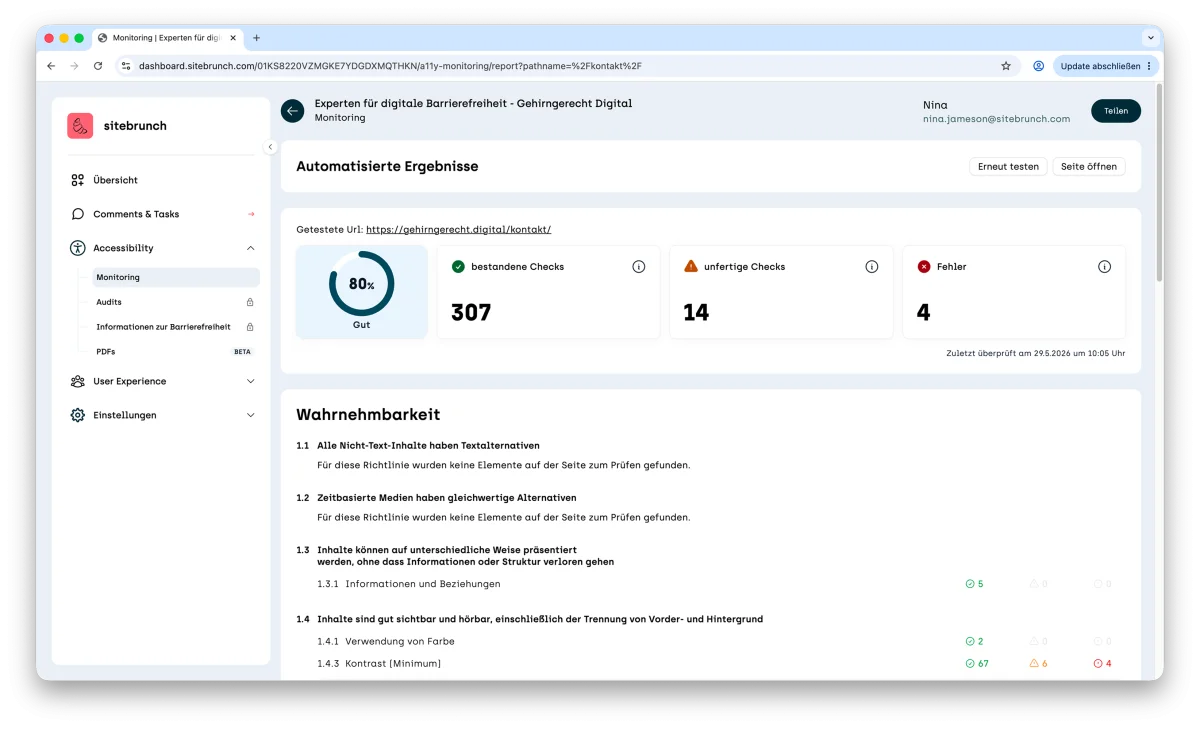
The overall score shows how well your pages do in the automated test. It is calculated from the scores of the individual subpages.
When a project starts, only the home page is checked for barriers. If you want to check more, you can add up to 10 more pages by hand in the settings in the Free plan.
If you track the accessibility of your website over a longer period, the tool records the trend. Below the overall score you see a chart that shows whether barriers go down or up over time.
The score distribution
The score distribution is shown right next to the overall score. It tells you how well your individual pages do in the automated tests.
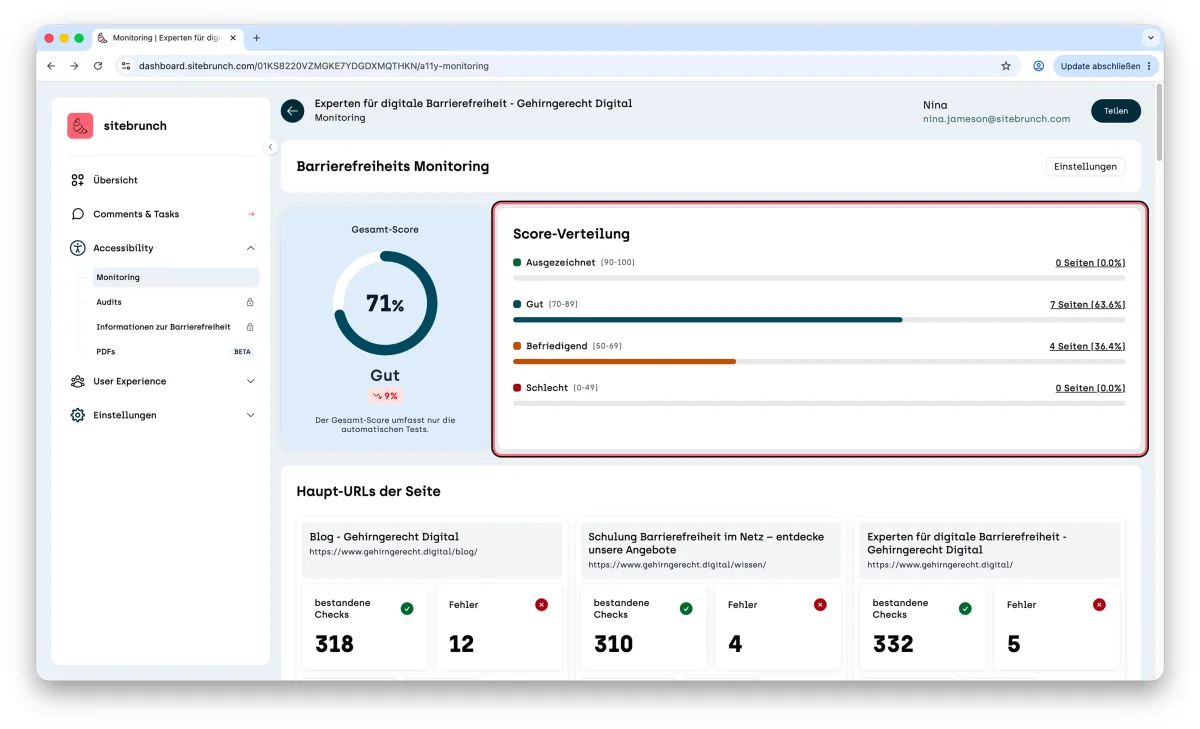
There are four rating ranges:
Excellent (the page reaches a score between 90 and 100)
Good (the page reaches a score between 70 and 89)
Fair (the page reaches a score between 50 and 69)
Poor (the page reaches a score between 0 and 49)
The distribution also shows you how many pages fall into each range.
If you click a group, for example “Good (70-89) 7 pages (63.4%)”, you are taken to the overview of the individual subpages. It lists all pages in this group, and you can see the exact score of each page.
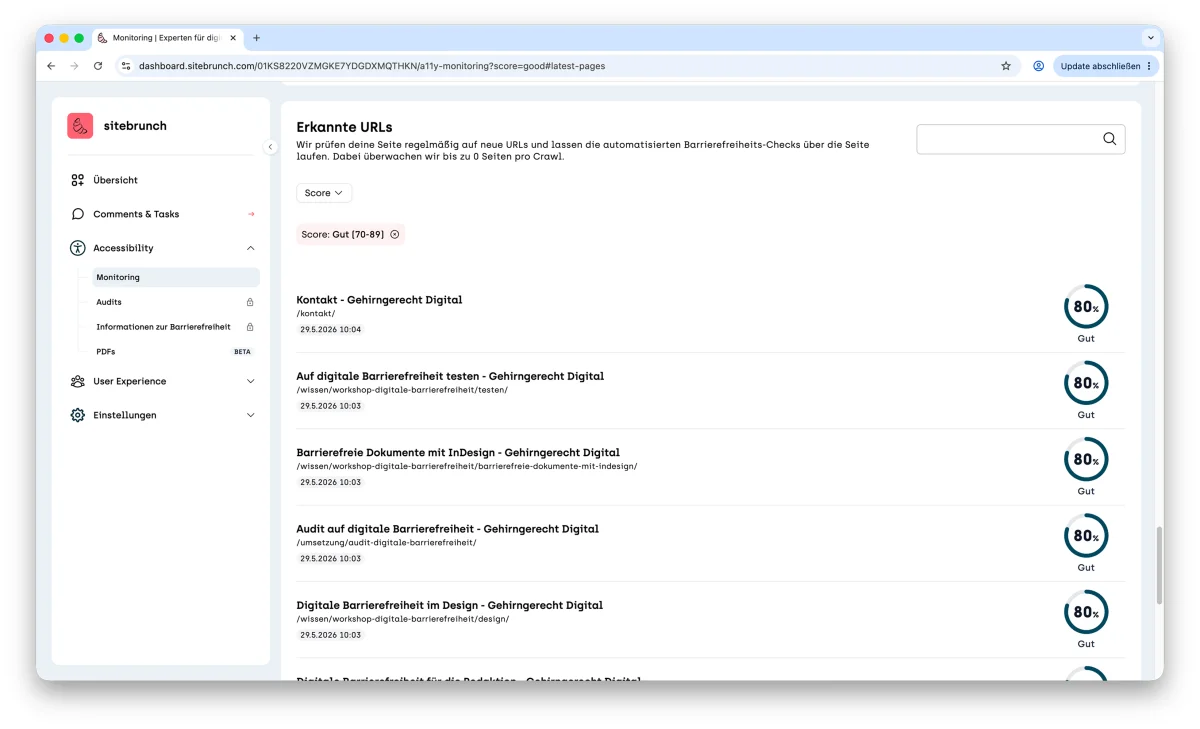
If you click a page there, you get to the report of the automated test and can analyze the errors.
Main URLs of the site
Below the overall score you find an analysis of the main pages of your website.
To choose them, open the monitoring settings and select the pages your users visit most. This way you always have the most important pages in view.
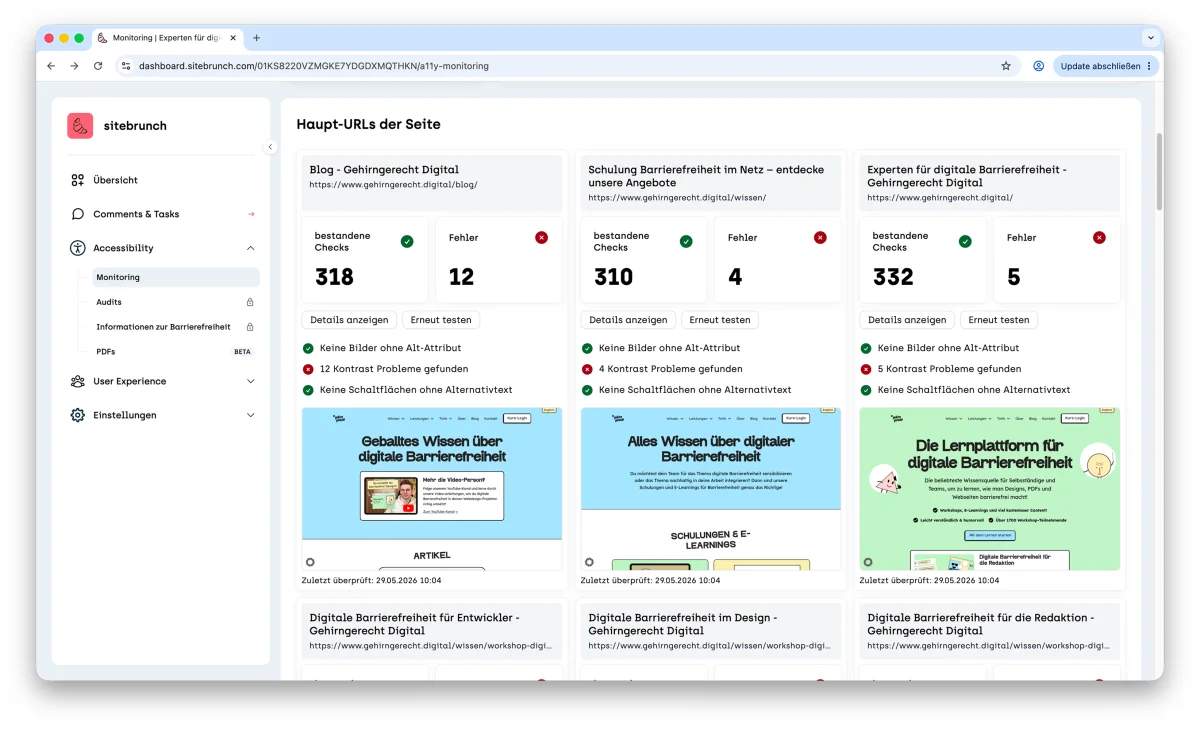
Each subpage is shown as a card. The card tells you:
Which subpage it is (e.g. Blog, Gehirngerecht Digital)
How many checks passed (e.g. passed checks 318)
How many errors were found (e.g. errors 12)
“Details”, the link to the report
“Test again”, to run the tests again by hand.
The three most common accessibility errors on websites:
Missing alt attribute (images have no alternative text for screen readers)
Contrast problems (text is too hard to tell apart from the background)
Icon buttons have no text alternative (buttons that only show a symbol, with no explanatory text that screen readers can read out)
A screenshot of the tested page
Quick Wins
Under the heading “Quick Wins” you see 5 problems that you can solve quickly and that have a big impact on the accessibility of your website. Click a quick win to see the details, for example on which pages the problem occurs and how you can fix it.
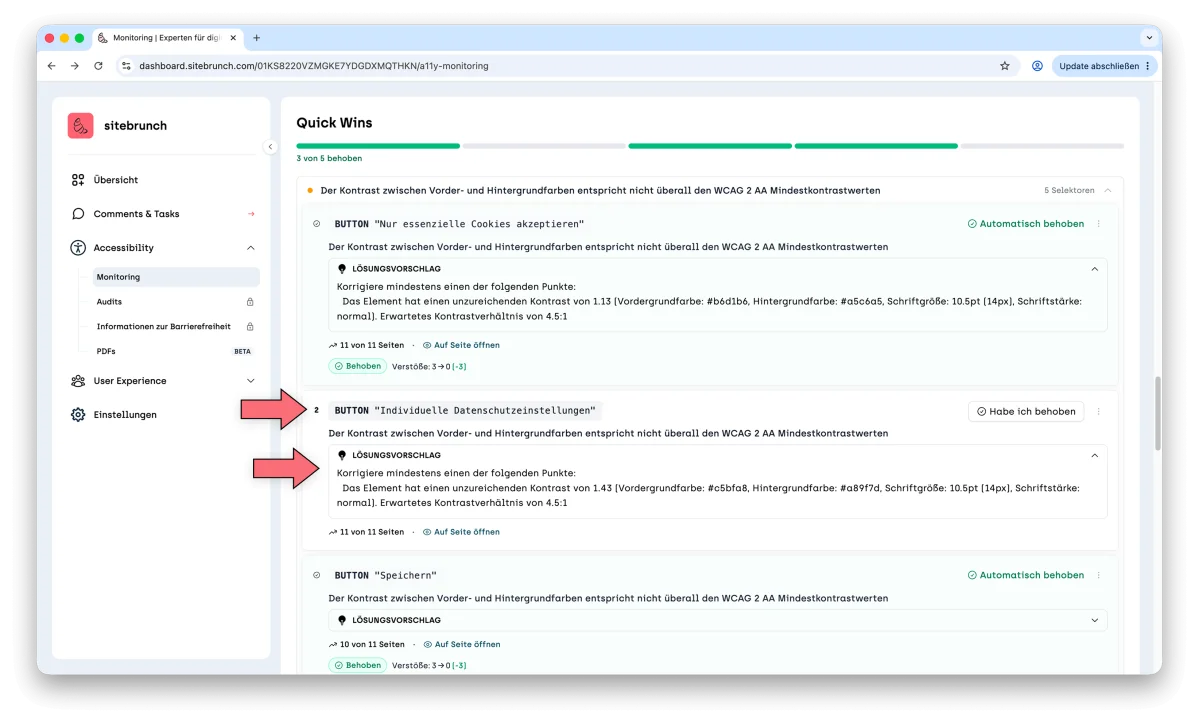
After you have fixed the problem, you can mark the quick win as fixed by clicking the “I fixed this” button. Or you can simply wait for the next scan and let sitebrunch detect the fix on its own.
Below the quick win list you also see the pages with the biggest improvement potential. These are the pages with the most errors, which currently keep many people from using them. Click one of these pages to open the report, and start fixing the errors listed there one by one.
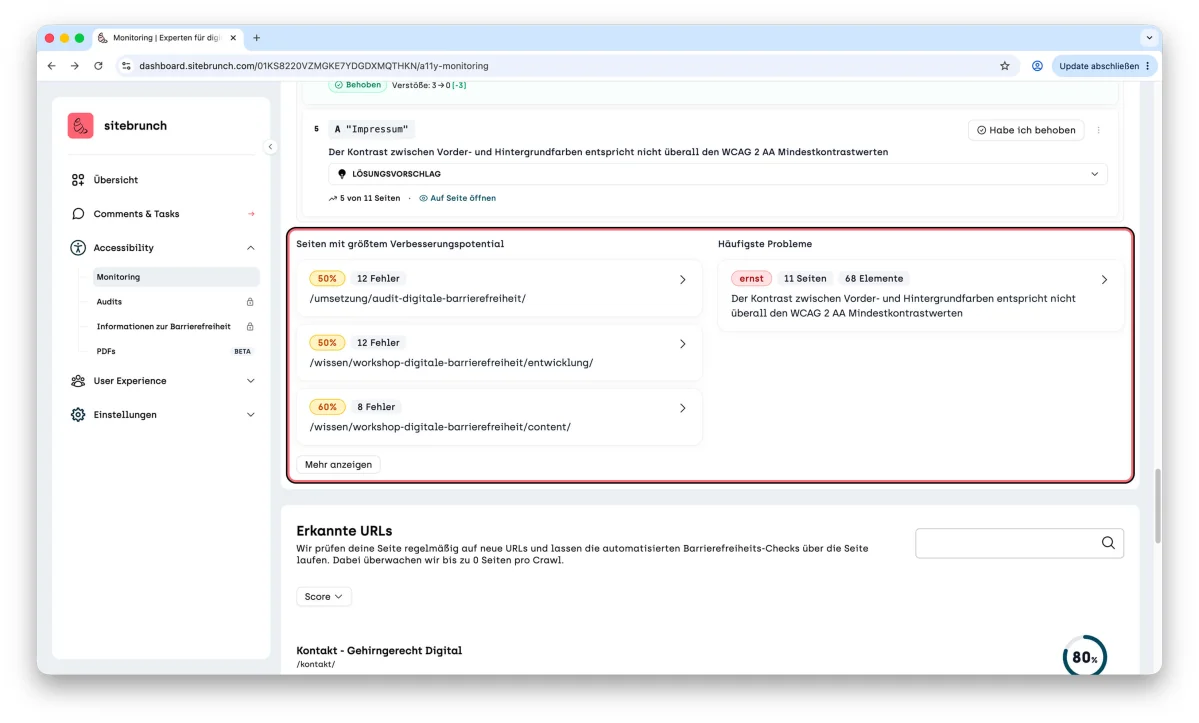
Next to them, the most common issues are listed. Our experience shows that a particular error often occurs on many pages. So it is easier to fix all occurrences of a problem at once. Use this list to pick one problem at a time, go through all affected pages and then tick it off completely.
Compliance with the BFSG and BGG
For your website to meet the legal requirements for accessibility, for example from the German Accessibility Strengthening Act (BFSG) and the German Disability Equality Act (BGG), automated tests alone are not enough. Automated tests are important because they keep accessibility on your radar and help you avoid many errors early. Still, it is important to know that in practice automated tests can only find about 30% of all accessibility problems.
One of my favorite examples is the language of a website. Every website has to state which language its content is in. HTML has an attribute for this (e.g. lang="de" for German). Detecting automatically whether the lang attribute is there, and maybe whether the language code is valid, is no problem. But whether the website really uses the stated language, and is not in English, for example, still has to be checked by hand today.
Unfortunately, this applies to almost every success criterion in the accessibility guidelines. There are always edge cases that a person has to check.
That is why you cannot avoid manual tests. Only the combination of automated and manual checks really moves you toward compliance with the BFSG, the BGG and the underlying standards such as WCAG and EN 301 549.
I'll show you how this works with sitebrunch in the “Audits” section.