This article shows you how to set up WCAG monitoring so your website is checked for accessibility around the clock. You get an overview of the problems found, so you can keep track of whether your site stays accessible.
Last updated: May 29, 2026
Requirements
You have an account and can log in.
You have created a project for your website.
Basic monitoring is available in all plans.
Adding new pages automatically and automatic PDF monitoring are available from the Solo plan. In the Free plan you can upload single PDFs by hand.
Configure monitoring
In the navigation menu of the project overview, click “Monitoring” under “Accessibility”.
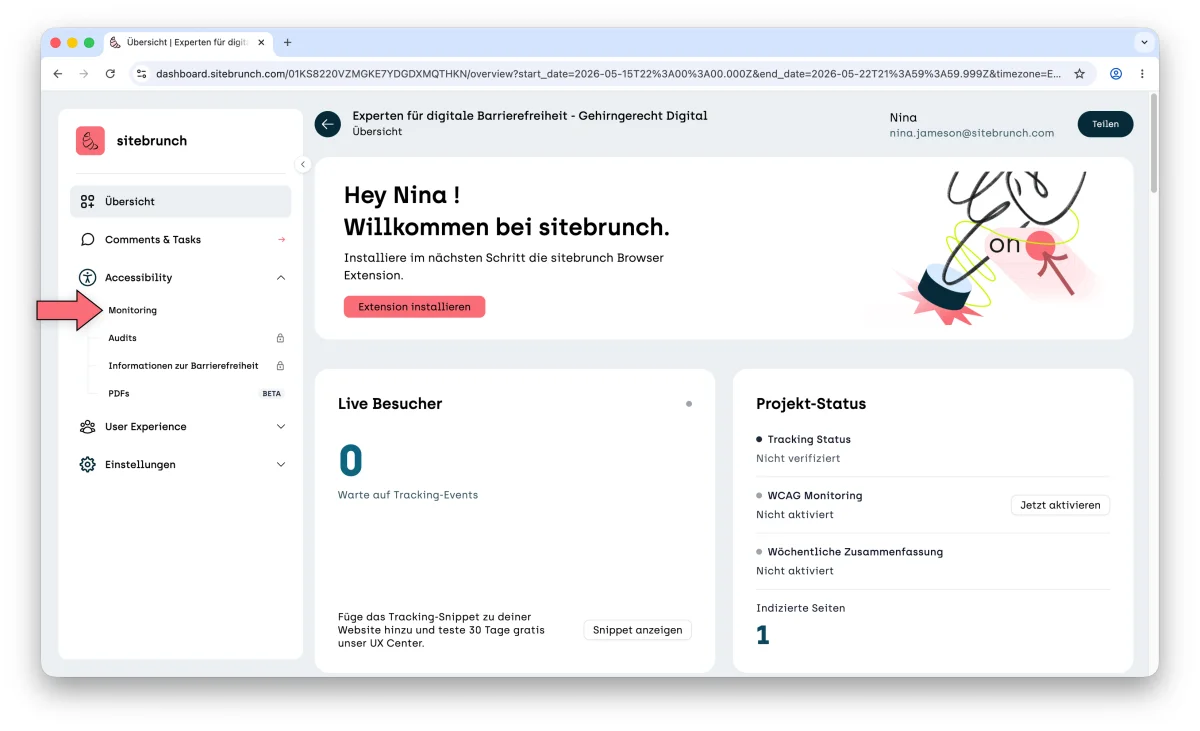
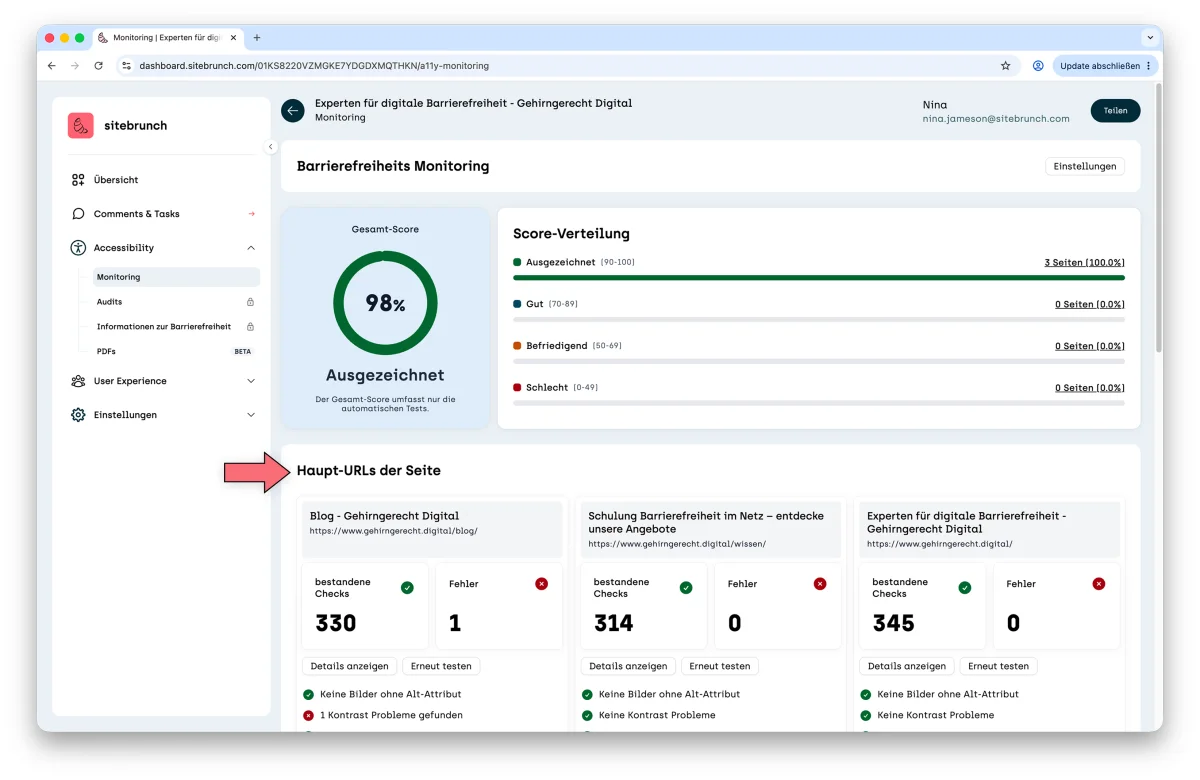
This takes you to the overview of the automated tests. As soon as you create a project, sitebrunch Accessibility automatically tests the home page of your website for accessibility errors.
Your website probably has more than one page you want to monitor.
Click the “Settings” link to set up more pages.
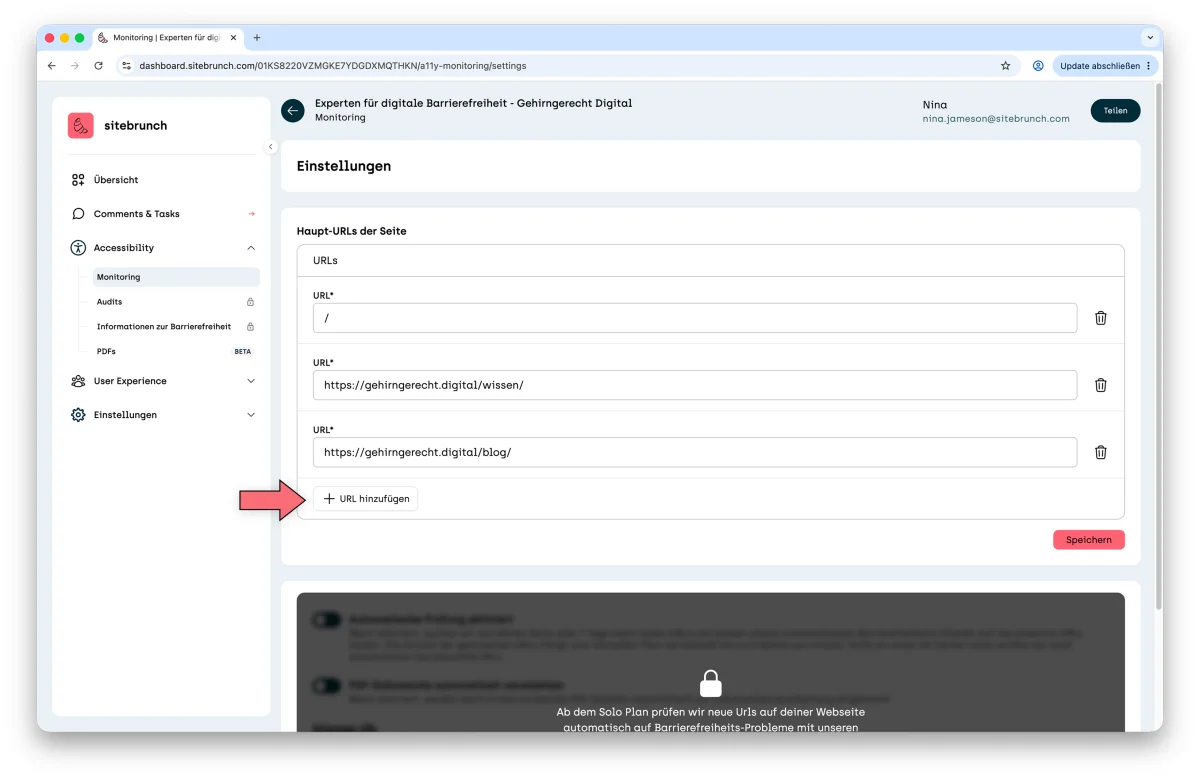
In the settings you can enter up to 10 URLs to be scanned. To do this, click the “Add url” button and enter the URL. When you are done, click the “Save” button.
Now go and drink a glass of water. When you come back, a first analysis of the website should be ready on the monitoring overview page.
Monitoring for PDFs
From the Solo plan, sitebrunch Accessibility can scan your website for PDFs and check them for accessibility automatically.
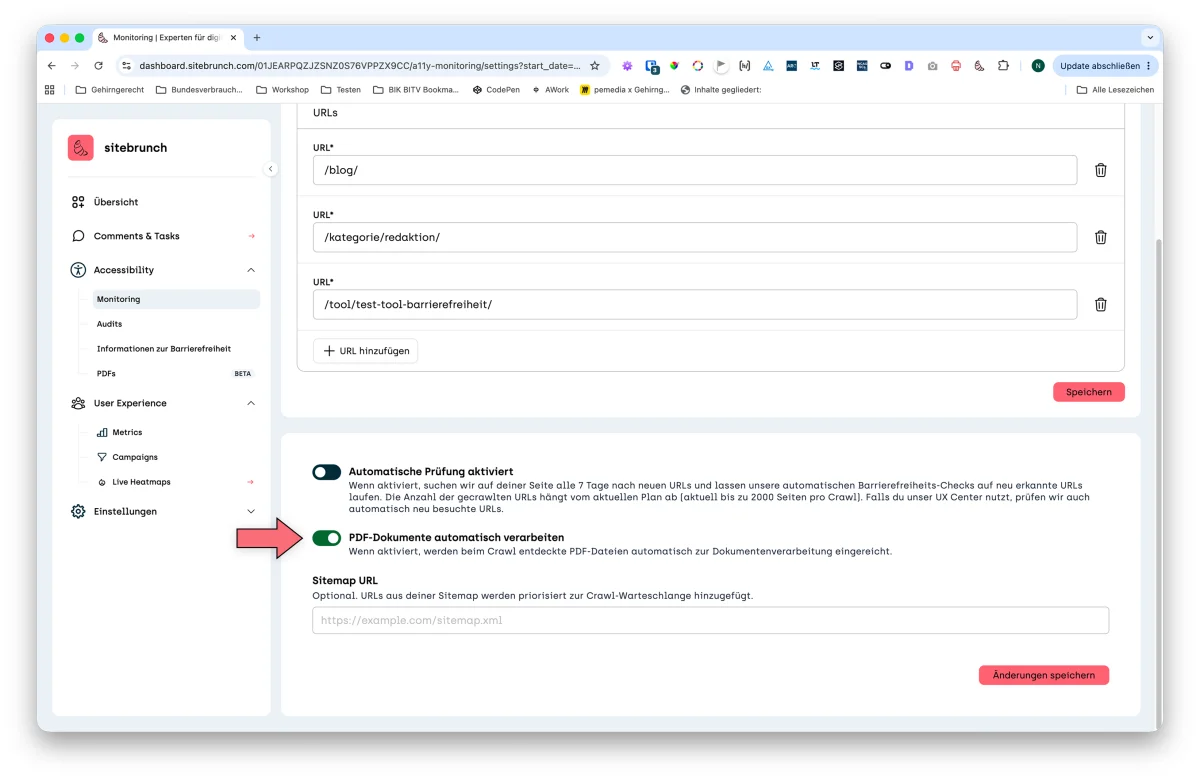
All you have to do is switch on the feature “Auto-process PDF documents” in the monitoring settings.