Learn how to check your PDF for accessibility and use the results to improve your documents.
Last updated: May 29, 2026
Requirements
You have an account and can log in.
You have created a project.
Check a PDF
To check a PDF, open your project and select “Documents” under “Accessibility” in the navigation menu.
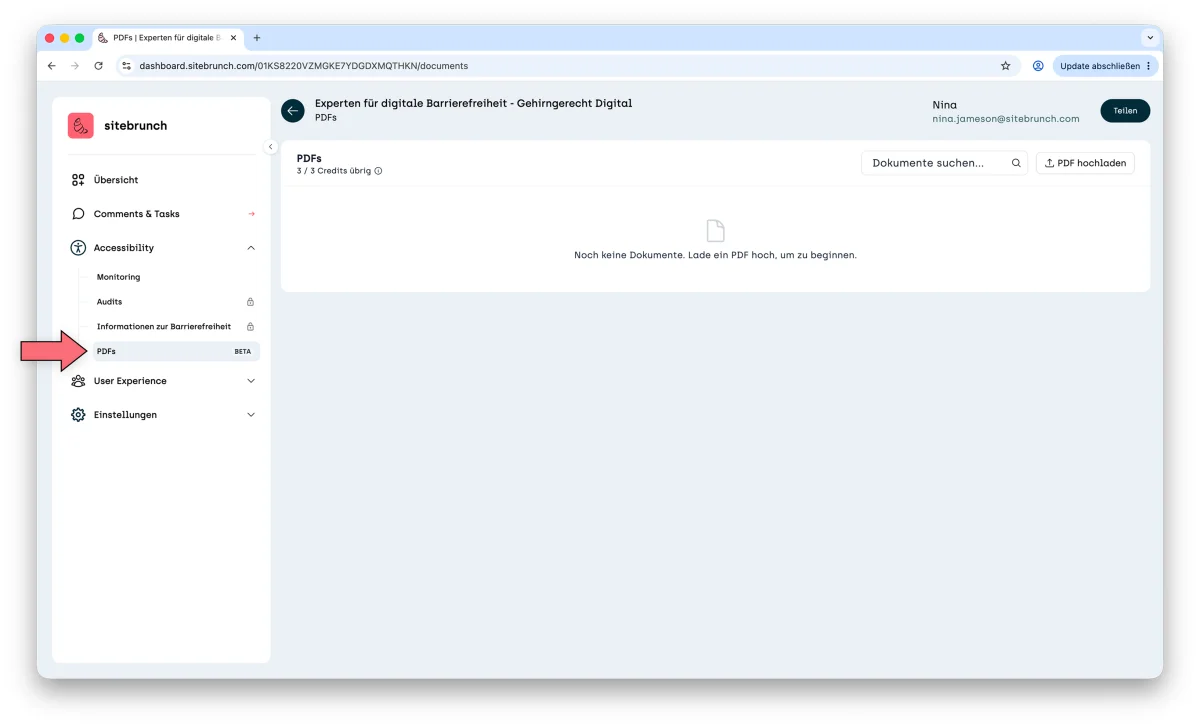
If you have already checked PDFs, you see the overview of your documents here. You can open your PDFs, view the results, check them again or delete them.
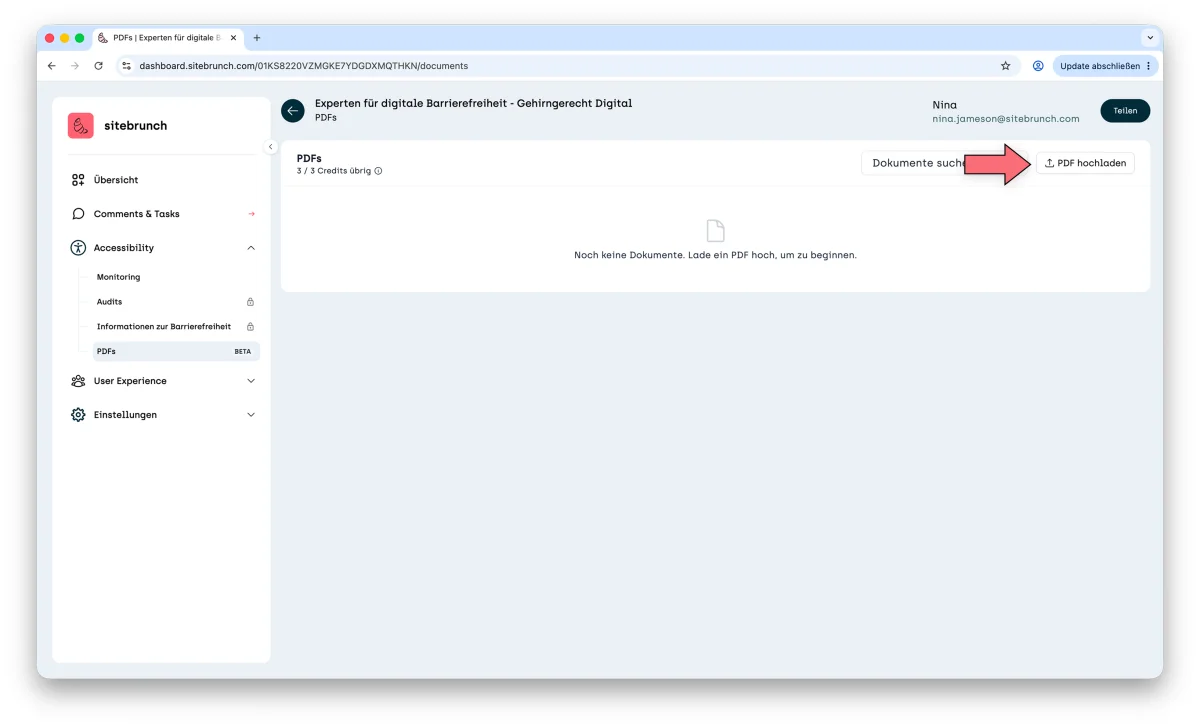
To check a new PDF, click the “Upload PDF” link.
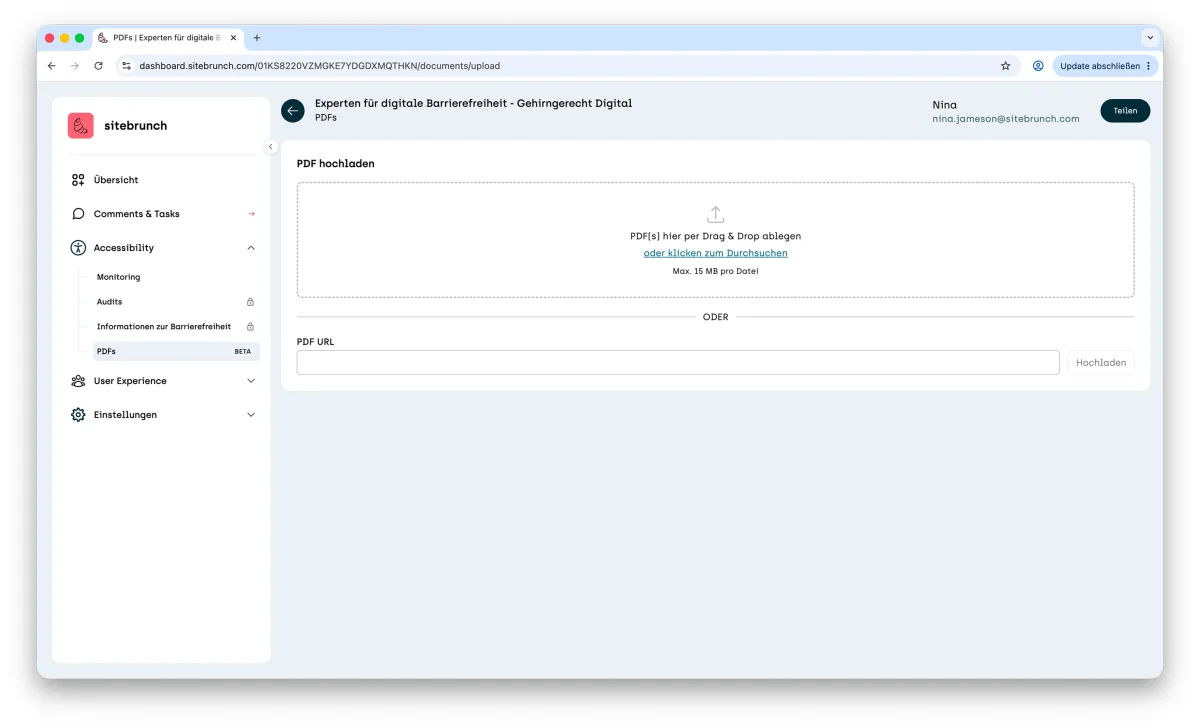
You are taken to the upload page, where you can either upload a PDF or enter a URL that points to a PDF file.
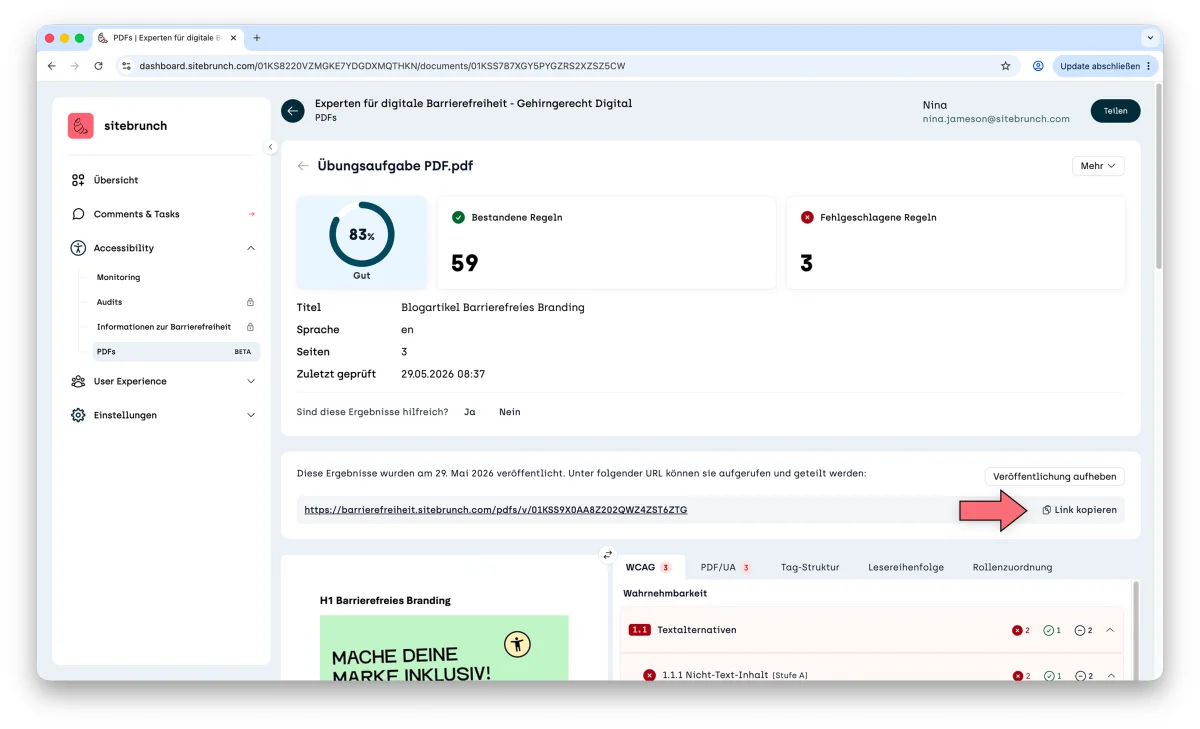
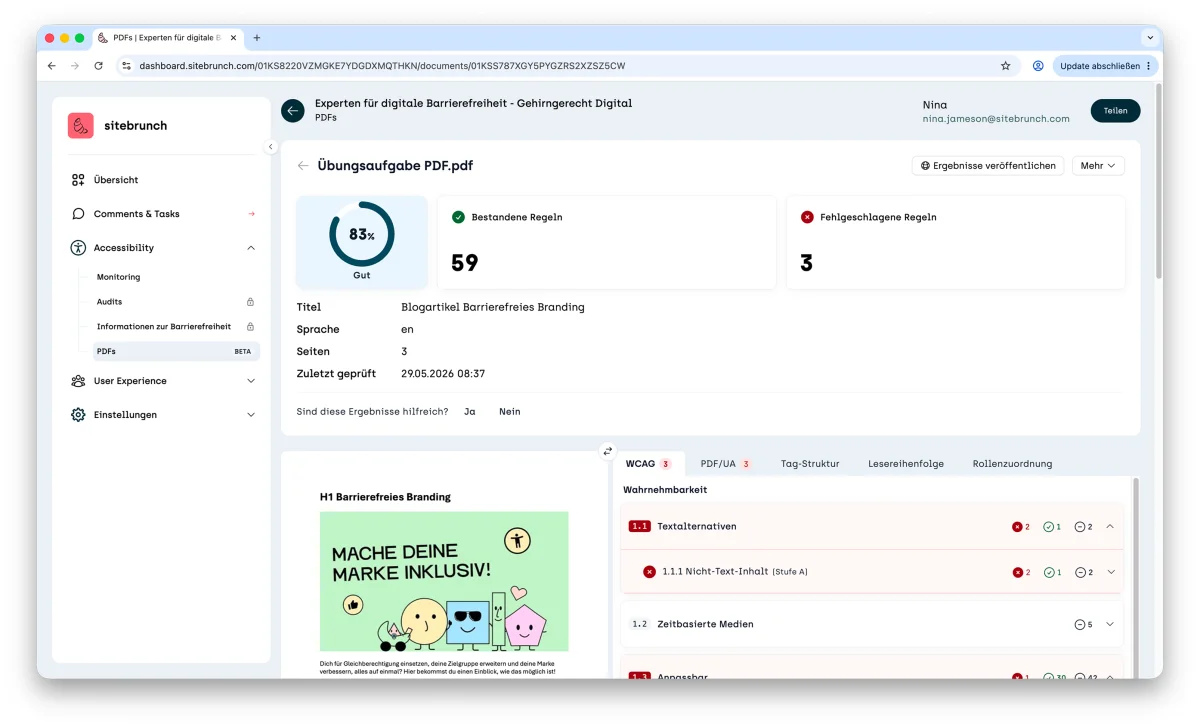
After you upload your PDF, the document is analyzed and you get the results. The results include:
An overall score (in the example 83% with the rating “Good”)
How many rules passed and how many failed
A list of the WCAG criteria with possible errors (WCAG are international guidelines for accessible websites and documents).
A list of the PDF/UA criteria with possible errors (PDF/UA is a standard for how PDF documents should be built to be technically accessible)
More helpful tools that help you analyze your PDF.
Understand and use the results
Start with the WCAG criteria that show errors. Click a criterion, for example 1.1.1 Non-text Content (Level A). This criterion checks whether images have alternative text so that screen readers can read them out. This way you can find out, for example, that an image has no alternative text.
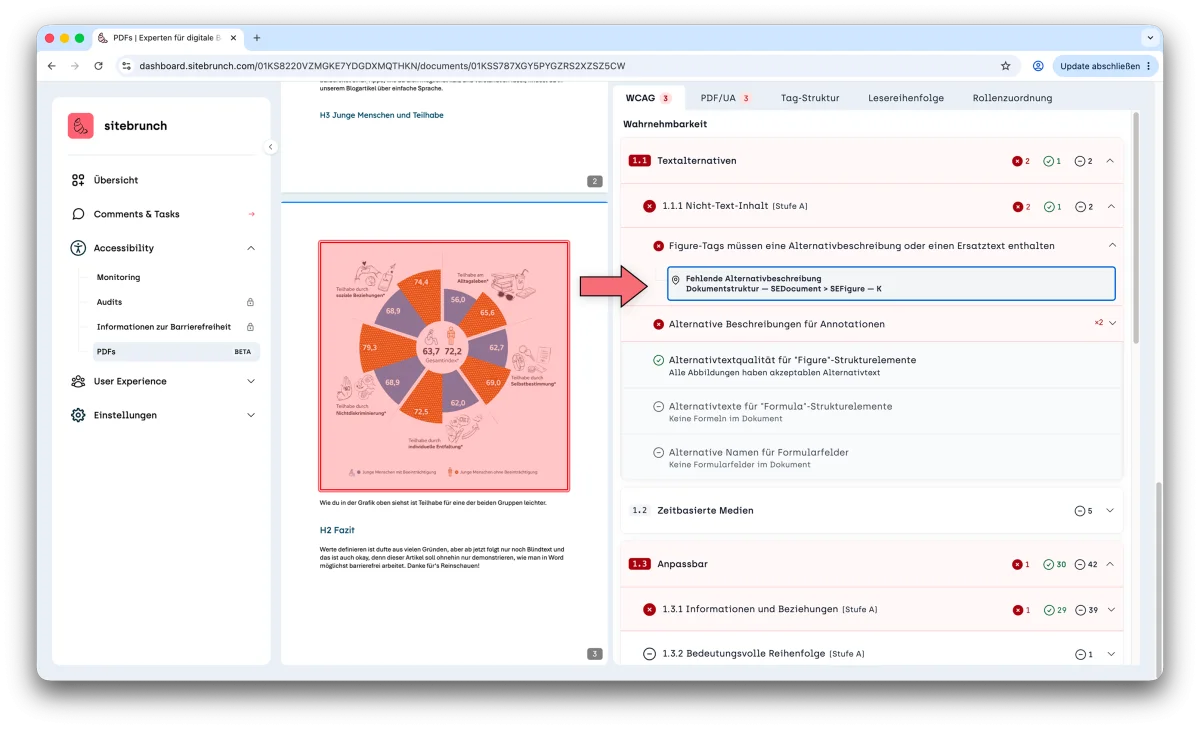
If you are the person who creates the PDF, you can now simply go to the source document (e.g. the Word or InDesign file) and fix the error yourself.
Share the report
You can also share the report with other people. To do this, click the “Publish Results” button.
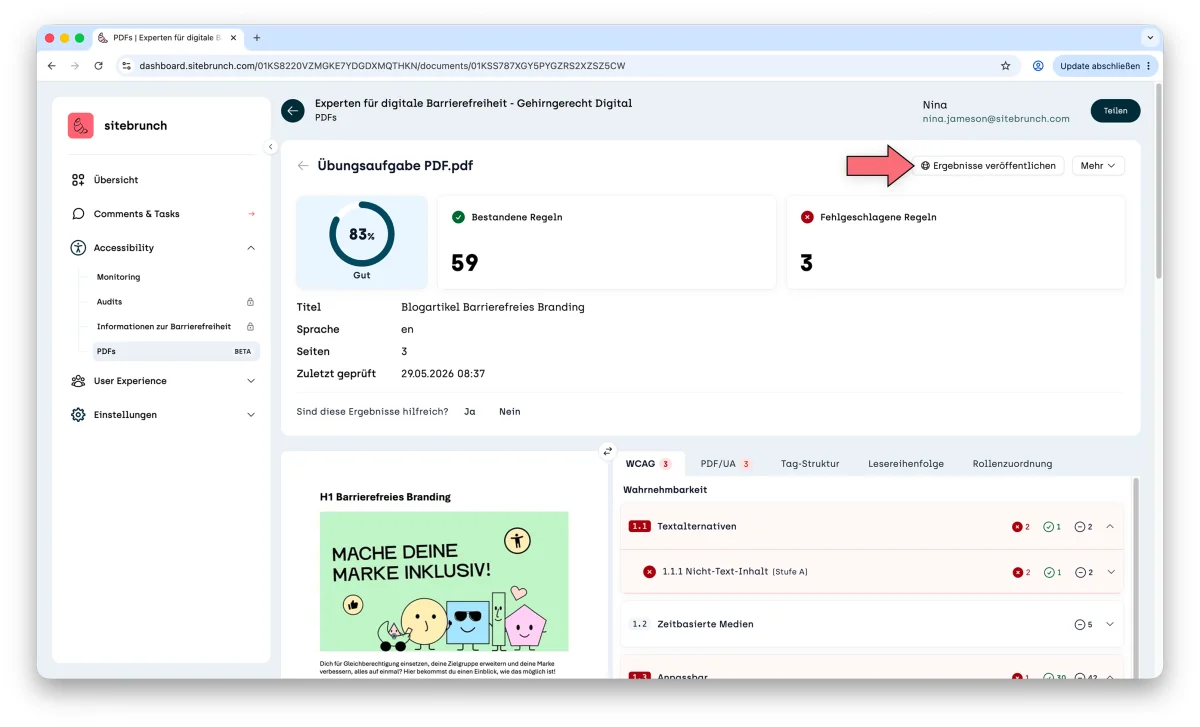
sitebrunch then publishes the check, and you can share it via a URL. Click the “Copy Link” button to share the link to the report with your team or your clients.